Skip to content

Adds CollectionNavigator to enable searching ListView/TreeView with keyboard#2132

Merged
tig merged 37 commits intogui-cs:developfrom
tig:listview_keyboard_search
Nov 1, 2022
Merged

Adds CollectionNavigator to enable searching ListView/TreeView with keyboard#2132
tig merged 37 commits intogui-cs:developfrom
tig:listview_keyboard_search

Conversation

@tig
Copy link
Copy Markdown
Member

@tig tig commented Oct 23, 2022

I've wanted this forever...

With this PR users can now start typing with any ListView in focus and the first item that matches what they are typing is selected.

The core code I put in ProcessKeystroke was generated by GitHub CoPilot. Blew me away. I'm guessing someone else already did this in a fork or app.

@BDisp and @tznind - I'd love your feedback on this. Especially the new IListDataSoruceSearchable interface:

  • It is probably mis-named; or it should be enhanced to support all sorts of searching.
  • There's probably a neat way to design this interface where a "compare" function can be provided. I'd love to know if you guys have suggestions on the best pattern for doing that?

I also re-wrote much of the API documentation to be more clear.

I've not written any unit tests for it yet. But will.

Cheers!

@tznind
Copy link
Copy Markdown
Collaborator

tznind commented Oct 23, 2022

This is cool! TreeView has a similar thing with AllowLetterBasedNavigation (defaults to true) but in this case it only does single letter with the letter cycling through the available entries (e.g. 'b' takes you to first b then pressing 'b' again takes you to next.

It would be good if we had the same behaviour in both places. I like the ability to search on more than just first letter but I also like being able to loop through.

I notice that Windows Explorer seems to support both at the same time. It must detect that there is nothing starting 'bb' and therefore instead take you to the second 'b' entry.

Given this feature could be useful in TreeView, ListView and other places (e.g. RadioView), I think we should make it a standalone class not tied to the IListDataSource interface. That would be using 'composition' instead of 'inheritance'. For example because _scenarioListView doesn't implement the new interface it doesn't get letter based navigation.

Something like

/// <summary>
/// Changes the index in a collection based on a letter key pressed
/// and the current state
/// </summary>
class LetterBasedCollectionNavigator : ICollectionNavigator 
{
    string state;
    DateTime lastKeystroke;
    public StringComparer Comparer { get; set; } = StringComparer.InvariantCultureIgnoreCase;

    int CalculateNewIndex(IEnumerable<string> collection, int currentIndex, ConsoleKey newKey)
    {
	// TODO: append/replace 

	throw new NotImplementedException ();
    }
}

This would also handily centralise the "timer and history logic" (currently in ListView.ProcessKey) with the 'matches search logic' (currently in ListWrapper) and provides a central location for users to make changes or add their own implementations

Comment thread Terminal.Gui/Views/ListView.cs Outdated
@tig
Copy link
Copy Markdown
Member Author

tig commented Oct 23, 2022

This is cool! TreeView has a similar thing with AllowLetterBasedNavigation (defaults to true) but in this case it only does single letter with the letter cycling through the available entries (e.g. 'b' takes you to first b then pressing 'b' again takes you to next.

It would be good if we had the same behaviour in both places. I like the ability to search on more than just first letter but I also like being able to loop through.

I notice that Windows Explorer seems to support both at the same time. It must detect that there is nothing starting 'bb' and therefore instead take you to the second 'b' entry.

Digging into this... wow, it can be complicated. And everyone does it differently.

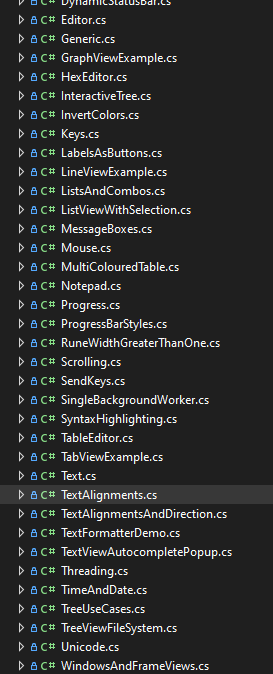
image

The tree views in Visual Studio (e.g. Solution Explorer):

  • Lets you type "t", "t", "t", repeatedly, each time going to the next "T" item (e.g. TableEditor.cs, TabViewExample.cs.Text.cs, TextAlignment.cs, ...).
  • Lets you type "tex", "tex", "tex" repeatedly, each time going to the next "Tex*" item (e.g. Text.cs, TextAlignment.cs, ...).
  • If you pause after "t" before typing "e" for ~250ms it will find the next "e" item (e.g. "Example").

The VS Code list:

  • Does NOT let you type "t", "t", "t", repeatedly, each time going to the next "T" item.
  • Does NOT let you type "tex", "tex", "tex" repeatedly, only selecting the first item matching and sticking there
  • If you pause after "t" before typing "e" for ~250ms it will find the next "e" item (e.g. "Example").

The Windows ListBox control (e.g. Explorer) (and I think the windows Tree uses same logic)

  • Lets you type "t", "t", "t", repeatedly, each time going to the next "T" item.
  • Beeps/Barfs when you type "tex", "tex", "tex" repeatedly, only selecting the first item matching and sticking there
  • If you pause after "t" before typing "e" for ~250ms it will find the next "e" item (e.g. "Example").

It seems the Windows & VS Code implementations work like my draft code does: Sets a timer when the user starts typing capturing the search string. However, Windows does do what @tznind suggested above with "t", "t", "t".

The VSCode implementation is

I definitely prefer the VS implementation, as it somehow does exactly what you'd want. It is sophisticated, likely recognizing the current search string matches multiple items until a pause in typing is detected.

I sure wish VisualStudio was open source ;-).

@tznind
Copy link
Copy Markdown
Collaborator

tznind commented Oct 23, 2022

I've had a little look tonight into writing an algorithm that behaves the same as Windows Explorer example. Here is a gist containing it:

https://gist.github.com/tznind/d7ecaa5156a63a0a66dee03c29102b7d

Its only a first stab but I've included tests for it and can add some more tomorrow. Might look into adding the whole "tex", "tex" bit but that is definitely a step up in terms of complexity.

@tig
Copy link
Copy Markdown
Member Author

tig commented Oct 23, 2022

I've had a little look tonight into writing an algorithm that behaves the same as Windows Explorer example. Here is a gist containing it:

https://gist.github.com/tznind/d7ecaa5156a63a0a66dee03c29102b7d

Its only a first stab but I've included tests for it and can add some more tomorrow. Might look into adding the whole "tex", "tex" bit but that is definitely a step up in terms of complexity.

Freaking awesome. I've been thinking about this all day. This is the kind of thing that gives me joy relative to this project; a great excuse to get seme intellectual stimulation I'd not normally be getting ;-).

Thoughts:

"letter-based collection navigator" ain't quite the right term.

If the collection includes "@ckindel", the user should be able to type the @ key.

How about "keystroke-based collection navigtor" or "keyboard collection navigator"?

On which keys to monitor:

My code was >= 32 && < 127. I think 32-255 is probably right.

https://www.gaijin.at/en/infos/ascii-ansi-character-table#:~:text=Characters%20with%20ASCII%20codes%2032%20to%20126%20are,Characters%20%28128-159%29%20These%20characters%20are%20part%20of%20Windows-1252.

Using DateTime.Now vs. timer seems far more flexible. I'll def go that route.

For Terminal.Gui we have the ustring/string duality issue. Your code assumes string and means if the IListDataSource uses ustrings, the entire list needs to be copied on each keystroke, right? So we'll need to figure out how to optimize that.

I really, really, like the way VS behaves; the Windows behavior just feels lame in comparison.

I'm curious what Finder on the Mac does.

@BDisp
Copy link
Copy Markdown
Collaborator

BDisp commented Oct 23, 2022

How about "keystroke-based collection navigtor" or "keyboard collection navigator"?

How about "unicode-based collection navigator"

My code was >= 32 && < 127. I think 32-255 is probably right.

How to deal with other unicode characters like, Chinese, Korean, etc...?

@tznind
Copy link
Copy Markdown
Collaborator

tznind commented Oct 24, 2022

Freaking awesome. I've been thinking about this all day. This is the kind of thing that gives me joy relative to this project; a great excuse to get seme intellectual stimulation I'd not normally be getting ;-).

Me too! I love nice self contained problems!

"letter-based collection navigator" ain't quite the right term.

Good point, in the light of day its a bit janky. I've renamed it SearchCollectionNavigator in the gist but am open to other suggestions. I don't like the word 'Keyboard' in the title as to me that implies it might handle the cursor logic (keyboard up/down/home etc) which it doesn't and shouldn't (thanks to keybindings system being so great for that already). Could call it TextSearchNavigator or TextSearchCollectionNavigator.

My code was >= 32 && < 127. I think 32-255 is probably right.

How to deal with other unicode characters like, Chinese, Korean, etc...?

I have switched to using char instead of ConsoleKey and added TestSearchCollectionNavigator_Unicode and TestSearchCollectionNavigator_AtSymbol tests. I have used char.IsLetterOrDigit(keyStruck) || char.IsPunctuation(keyStruck) since that seems most robust.

For Terminal.Gui we have the ustring/string duality issue. Your code assumes string and means if the IListDataSource uses ustrings, the entire list needs to be copied on each keystroke, right? So we'll need to figure out how to optimize that.

Definetly need to think about that! I'd like to start with getting the algorithm right then we can worry about porting to ustring or making the implementation Type agnostic.

@tig
Copy link
Copy Markdown
Member Author

tig commented Oct 24, 2022

@tznind at bar at airport now for a few hours. Wanna submit your gist as a PR to my branch so I can party on it?

@tznind
Copy link
Copy Markdown
Collaborator

tznind commented Oct 24, 2022

Ok I think I have done this right:

tig#1

@tig
Copy link
Copy Markdown
Member Author

tig commented Oct 25, 2022

Ok I think I have done this right:

tig#1

It basically works. You can see I started adding TreeView as well (to the new Scnenario). But then my flight was landing ;-)

Let me know what you think.

Comment thread Terminal.Gui/Views/ListView.cs
@BDisp
Copy link
Copy Markdown
Collaborator

BDisp commented Oct 25, 2022

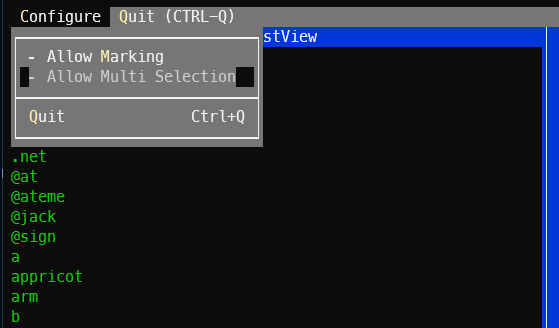
@tig I see this strange behavior on a disabled menu item after clicked on it and moving the mouse. It stay selected and it shouldn't.

imagem

@tig
Copy link
Copy Markdown
Member Author

tig commented Oct 25, 2022

@tig I see this strange behavior on a disabled menu item after clicked on it and moving the mouse. It stay selected and it shouldn't.

imagem

I think that's a bug in Menu where it's not clearing correctly?

@tig
Copy link
Copy Markdown
Member Author

tig commented Oct 25, 2022

Ok, more updates...

I still haven't made TreeView work, but in testing the Scenario list in UI Catalog I realized THAT implementation of ScenarioListDataSource could never work right because it was List<Type> and Type.ToString() returns the fully qualified class (e.g. Terminal.Gui.Scenario.Generic). So I refactored UI Catalog and Scenario to use List<Scenario>.

This actually simplifies the code in UI Catalog and negates the need for ScenaroListDataSource (that code still exists in the ListViewWithSelection scenario).

Check it out!

@BDisp
Copy link
Copy Markdown
Collaborator

BDisp commented Oct 25, 2022

I think that's a bug in Menu where it's not clearing correctly?

For sure it is. It must maintain the last menu item selected until the mouse moves to a enabled menu item. I'll open a new issue.

@tig tig changed the title ListView: Enables searching with keyboard Adds SearchCollectionNavigator to enable searching ListView/TreeView with keyboard Oct 30, 2022
@tig
Copy link
Copy Markdown
Member Author

tig commented Oct 30, 2022

@tznind Wanna take a look at modifying TreeView to use this now. Note the scenario I added has a TreeView in it that you can use to make progress...

;-)

@tig tig requested a review from migueldeicaza as a code owner November 1, 2022 03:46
@tig
Copy link
Copy Markdown
Member Author

tig commented Nov 1, 2022

@BDisp and @tznind (and anyone else paying attention), this PR is ready for review!

@tznind - I think the weirdness you were seeing with regards to repeated chars is addressed. I took a slightly different approach (before I saw your PR).

I've beat on this a ton, and I think it works well. But the more eyes the better!

@BDisp
Copy link
Copy Markdown
Collaborator

BDisp commented Nov 1, 2022

I don't like the behavior when quitting a scenario it not preserve the last selected item. It's a regression on the UICatalog. Maybe wasn't changed in this PR but on another,

@BDisp
Copy link
Copy Markdown
Collaborator

BDisp commented Nov 1, 2022

I think it may have a little more time to search for a word. While I'm typing faster sometimes starts a new search. For e.g. I tried typing candle the faster as I can but it start another searching starting with another letter at the middle of typing. I think the timer should be restarted in each typing if the timer wasn't yet elapsed.

Comment thread Terminal.Gui/Core/SearchCollectionNavigator.cs
@tznind
Copy link
Copy Markdown
Collaborator

tznind commented Nov 1, 2022

I think it may have a little more time to search for a word. While I'm typing faster sometimes starts a new search. For e.g. I tried typing candle the faster as I can

I agree. Its currently 250ms. I think we could increase it to 500ms or more maybe. Also I think we should allow for customising if possible, its just a polite thing to do. Also potentially handy for accessibility use cases.

but it start another searching starting with another letter at the middle of typing.

One thing that it currently does that is different from Explorer is that as soon as you hit a wrong key then it jumps to that index. So if you type cand then z it jumps you to something beginning with z. In the same situation Windows Explorer beeps (not the best!) but remains on candle.

We might be able to update the behaviour so that a 'wrong' keypress (z) within 500ms of a 'right' keypress ("can"+'d') is simply ignored (possibly ending the search process though). That would give a short delay for user to realise the thing they typed doesn't exist and then start a new search (which would be possible 500ms after the last 'good' keypress). This would only apply for 2+ character searches where theres been a successful 2+ character match right before.

Let me know if that wall of text was confusing ;)

I think the timer should be restarted in each typing if the timer wasn't yet elapsed.

This should already be the case. There are several calls to lastKeystroke = DateTime.Now; which should achieve that. After we have increased the delay then let me know if you are still feeling like this is the case.

@BDisp
Copy link
Copy Markdown
Collaborator

BDisp commented Nov 1, 2022

I agree. Its currently 250ms. I think we could increase it to 500ms or more maybe. Also I think we should allow for customising if possible, its just a polite thing to do. Also potentially handy for accessibility use cases.

In my opinion if the user typed before the elapsed time is reached, then the should be restarted to the default value and waiting for the user input. If the elapsed time is reached it means that the user doesn't type anything and clear the search for start a new searching. Increment a lot can force user to wait to the elapsed time is reached to start typing a new search. I think restarting the timer with the current word id the better solution.

One thing that it currently does that is different from Explorer is that as soon as you hit a wrong key then it jumps to that index. So if you type cand then z it jumps you to something beginning with z. In the same situation Windows Explorer beeps (not the best!) but remains on candle.

I meaning if we are typing the right word. If we type another character that is find the behavior must another. For e.g. if the word doesn't exist before the elapsed time is reached then the last found is remained. If the user type after the elapsed time, then a new search is started.

Let me know if that wall of text was confusing ;)

A little :-)

This should already be the case. There are several calls to lastKeystroke = DateTime.Now; which should achieve that. After we have increased the delay then let me know if you are still feeling like this is the case.

Ok let me know when done. Thanks both for yours great work.

@tznind
Copy link
Copy Markdown
Collaborator

tznind commented Nov 1, 2022

In my opinion if the user typed before the elapsed time is reached, then the should be restarted to the default value and waiting for the user input. If the elapsed time is reached it means that the user doesn't type anything and clear the search for start a new searching.

This is already how it works. There is no 'incrementing'. Every keystroke resets lastKeystroke which is inspected against DateTime.Now to see if too much time has expired.

@tig
Copy link
Copy Markdown
Member Author

tig commented Nov 1, 2022

I don't like the behavior when quitting a scenario it not preserve the last selected item. It's a regression on the UICatalog. Maybe wasn't changed in this PR but on another,

Yea, I fixed this an then somehow broke it again. I'll fix it later.

@tig
Copy link
Copy Markdown
Member Author

tig commented Nov 1, 2022

Delay is now 500ms and TypingDelay is public

@tig
Copy link
Copy Markdown
Member Author

tig commented Nov 1, 2022

One thing that it currently does that is different from Explorer is that as soon as you hit a wrong key then it jumps to that index. So if you type cand then z it jumps you to something beginning with z. In the same situation Windows Explorer beeps (not the best!) but remains on candle.

I think you are right and I'd like to fix this before we merge.

VS2022 (Solution Explorer) does the right thing IMO.

@tig
Copy link
Copy Markdown
Member Author

tig commented Nov 1, 2022

I don't like the behavior when quitting a scenario it not preserve the last selected item. It's a regression on the UICatalog. Maybe wasn't changed in this PR but on another,

Yea, I fixed this an then somehow broke it again. I'll fix it later.

Now I remember: #2140 needs to be fixed and then this will work correctly. I'm working on a PR for it now.

@tig
Copy link
Copy Markdown
Member Author

tig commented Nov 1, 2022

Ok, I think I fixed the 'wrong' key behavior! Give her a whirl!

@tig tig changed the title Adds SearchCollectionNavigator to enable searching ListView/TreeView with keyboard Adds CollectionNavigator to enable searching ListView/TreeView with keyboard Nov 1, 2022
@BDisp
Copy link
Copy Markdown
Collaborator

BDisp commented Nov 1, 2022

Ok, I think I fixed the 'wrong' key behavior! Give her a whirl!

Very much better. Congrats. Thanks.

@tznind
Copy link
Copy Markdown
Collaborator

tznind commented Nov 1, 2022

This is working great, very natural feeling! Love the new Label showing the search too, very nice.

@tig tig merged commit 973db98 into gui-cs:develop Nov 1, 2022
This was referenced Nov 4, 2022
@tig tig deleted the listview_keyboard_search branch April 3, 2024 01:48
Sign up for free to join this conversation on GitHub. Already have an account? Sign in to comment

Labels

None yet

Projects

None yet

Development

Successfully merging this pull request may close these issues.

3 participants