docs - expose MCPs on public internet #20626
There are no files selected for viewing
| Original file line number | Diff line number | Diff line change |
|---|---|---|
| @@ -0,0 +1,241 @@ | ||
| import Tabs from '@theme/Tabs'; | ||
| import TabItem from '@theme/TabItem'; | ||
|
|
||
| # Exposing MCPs on the Public Internet | ||
|
|
||
| Control which MCP servers are visible to external callers (e.g., ChatGPT, Claude Desktop) vs. internal-only callers. This is useful when you want a subset of your MCP servers available publicly while keeping sensitive servers restricted to your private network. | ||
|
|
||
| ## Overview | ||
|
|
||
| | Property | Details | | ||
| |-------|-------| | ||
| | Description | IP-based access control for MCP servers — external callers only see servers marked as public | | ||
| | Setting | `available_on_public_internet` on each MCP server | | ||
| | Network Config | `mcp_internal_ip_ranges` in `general_settings` | | ||
| | Supported Clients | ChatGPT, Claude Desktop, Cursor, OpenAI API, or any MCP client | | ||
|
|
||
| ## How It Works | ||
|
|
||
| When a request arrives at LiteLLM's MCP endpoints, LiteLLM checks the caller's IP address to determine whether they are an **internal** or **external** caller: | ||
|
|
||
| 1. **Extract the client IP** from the incoming request (supports `X-Forwarded-For` when configured behind a reverse proxy). | ||
| 2. **Classify the IP** as internal or external by checking it against the configured private IP ranges (defaults to RFC 1918: `10.0.0.0/8`, `172.16.0.0/12`, `192.168.0.0/16`, `127.0.0.0/8`). | ||
| 3. **Filter the server list**: | ||
| - **Internal callers** see all MCP servers (public and private). | ||
| - **External callers** only see servers with `available_on_public_internet: true`. | ||
|
|
||
| This filtering is applied at every MCP access point: the MCP registry, tool listing, tool calling, dynamic server routes, and OAuth discovery endpoints. | ||
|
|
||
| ```mermaid | ||
| flowchart TD | ||
| A[Incoming MCP Request] --> B[Extract Client IP Address] | ||
| B --> C{Is IP in private ranges?} | ||
| C -->|Yes - Internal caller| D[Return ALL MCP servers] | ||
| C -->|No - External caller| E[Return ONLY servers with<br/>available_on_public_internet = true] | ||
| ``` | ||
|
|
||
| ## Walkthrough | ||
|
|
||
| This walkthrough covers two flows: | ||
| 1. **Adding a public MCP server** (DeepWiki) and connecting to it from ChatGPT | ||
| 2. **Making an existing server private** (Exa) and verifying ChatGPT no longer sees it | ||
|
|
||
| ### Flow 1: Add a Public MCP Server (DeepWiki) | ||
|
|
||
| DeepWiki is a free MCP server — a good candidate to expose publicly so AI gateway users can access it from ChatGPT. | ||
|
|
||
| #### Step 1: Create the MCP Server | ||
|
|
||
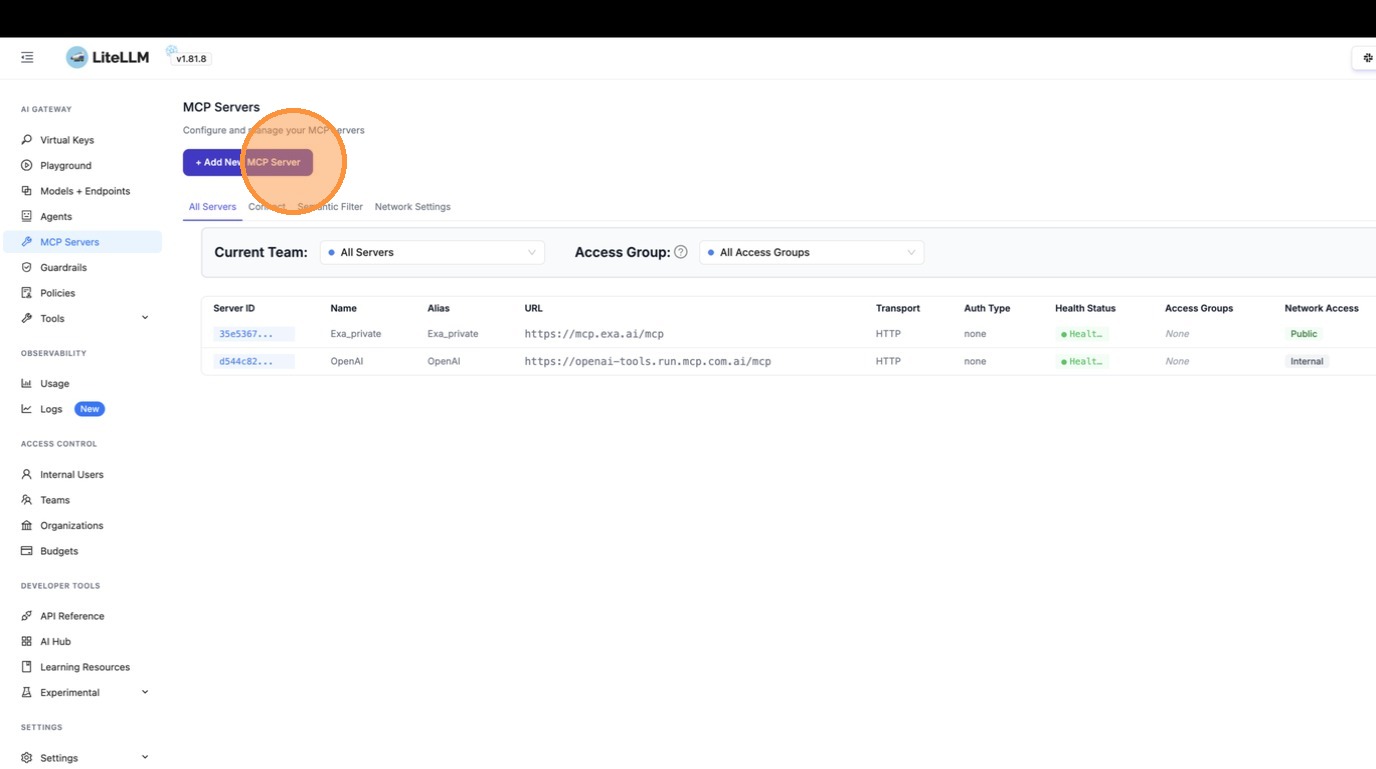
| Navigate to the MCP Servers page and click **"+ Add New MCP Server"**. | ||
|
|
||
|  | ||
|
|
||
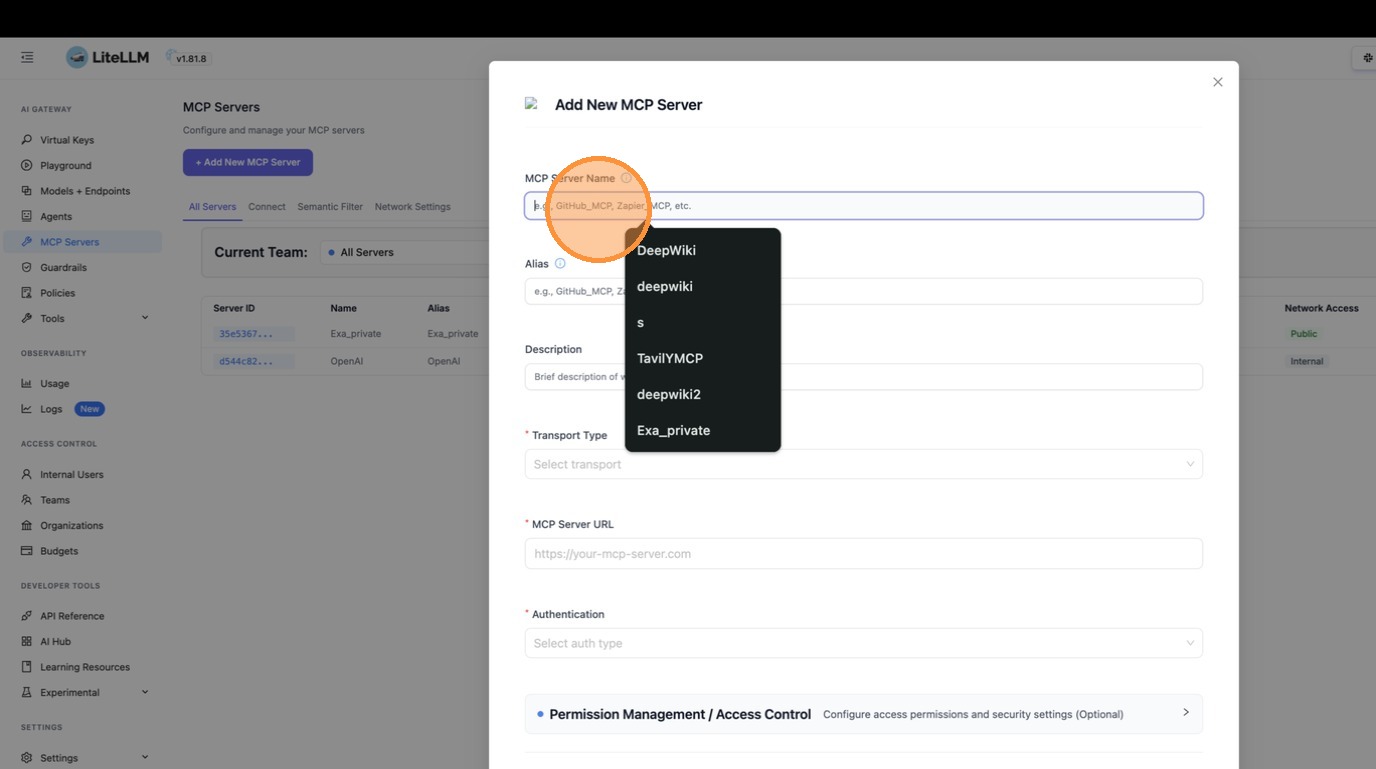
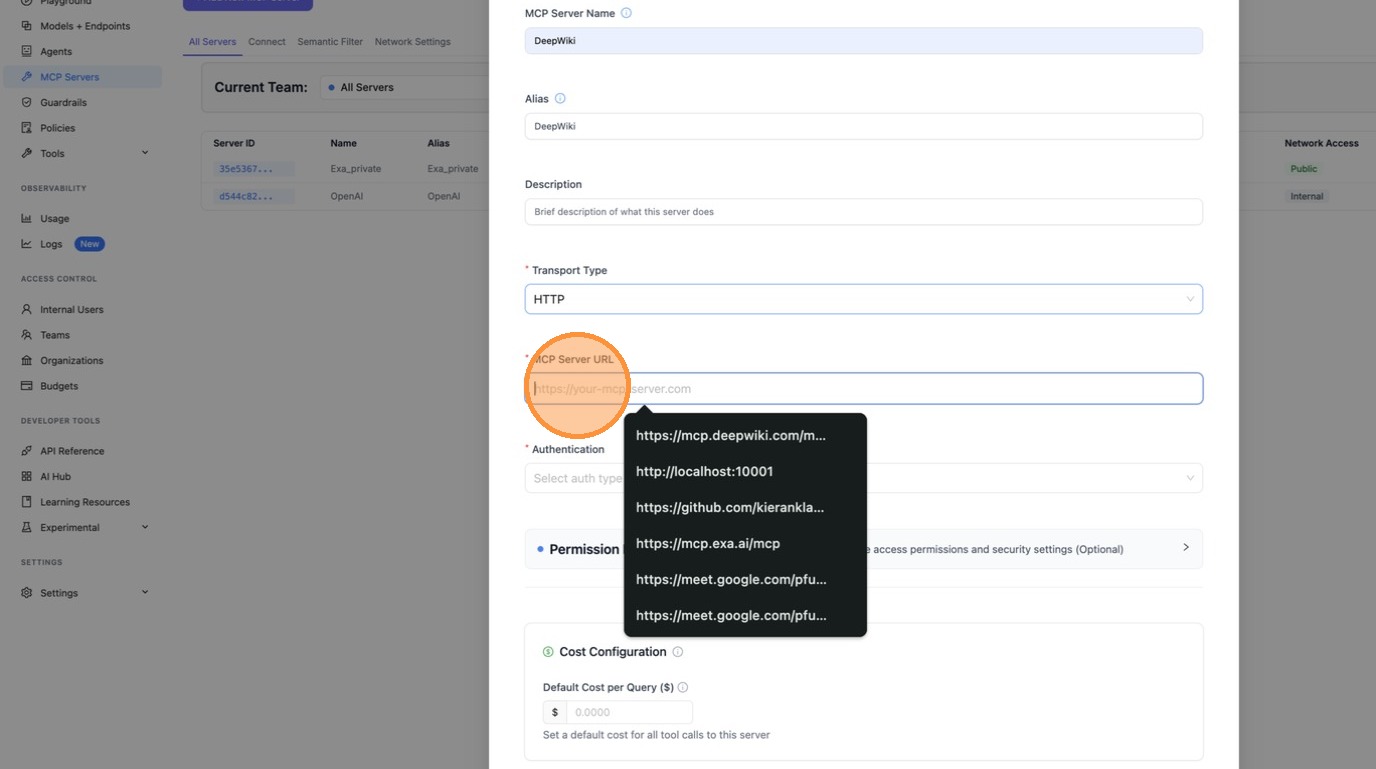
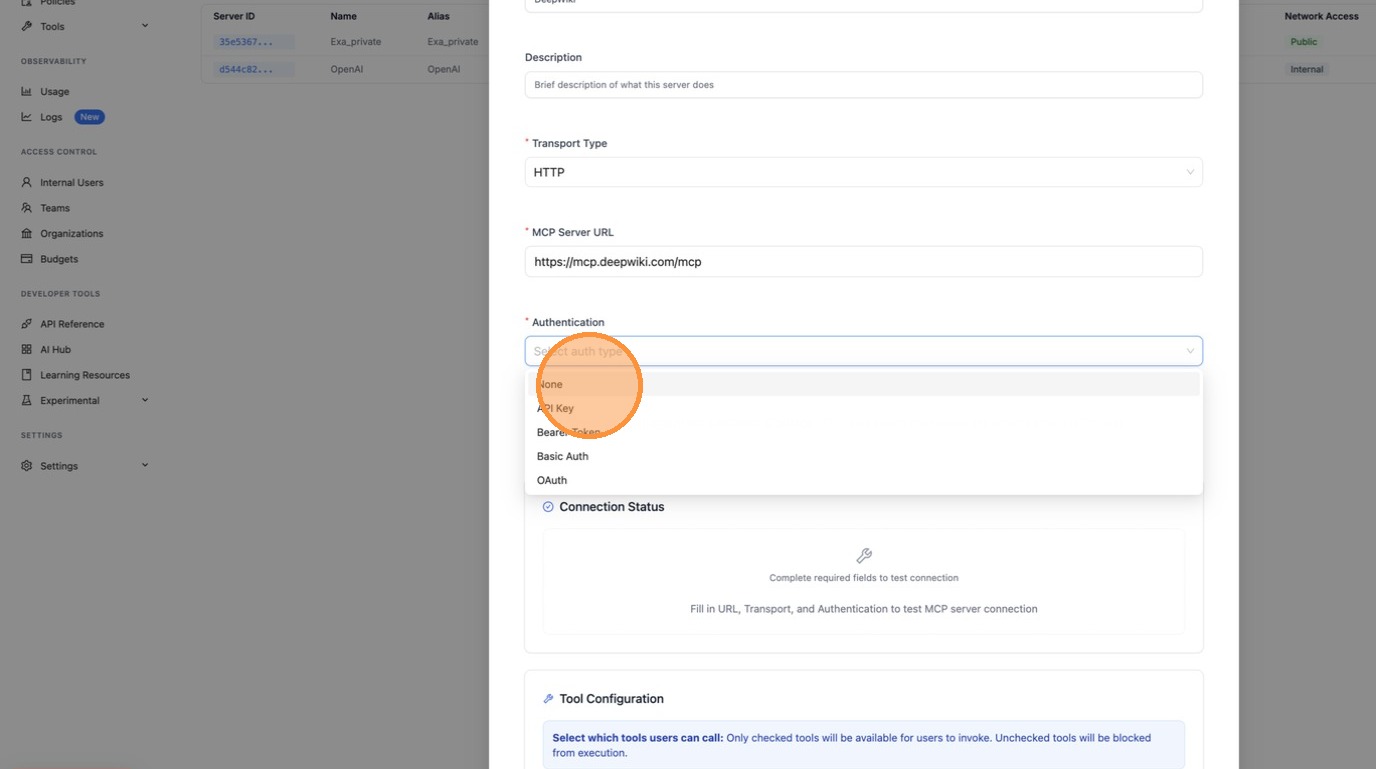
| Enter the server details — name it "DeepWiki" and set the URL to `https://mcp.deepwiki.com/mcp`. | ||
|
|
||
|  | ||
|
|
||
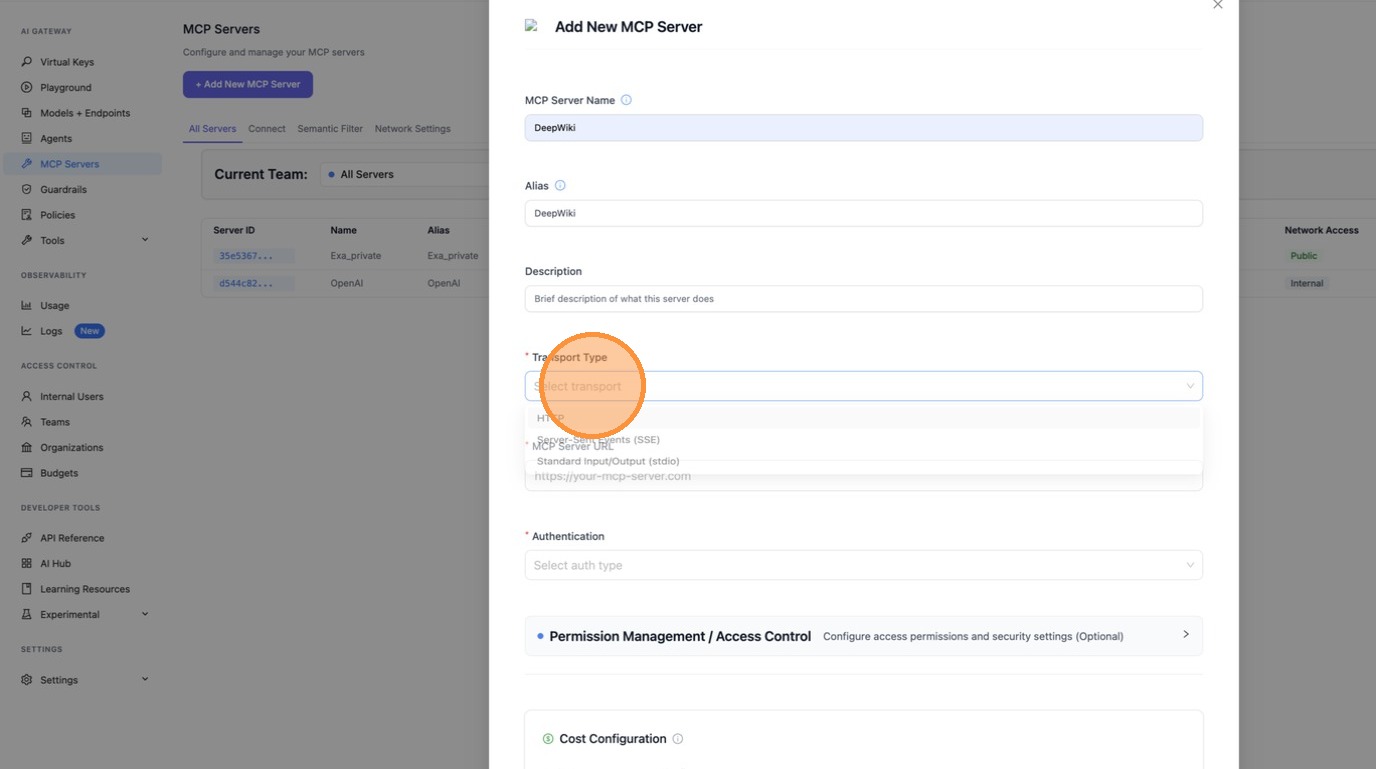
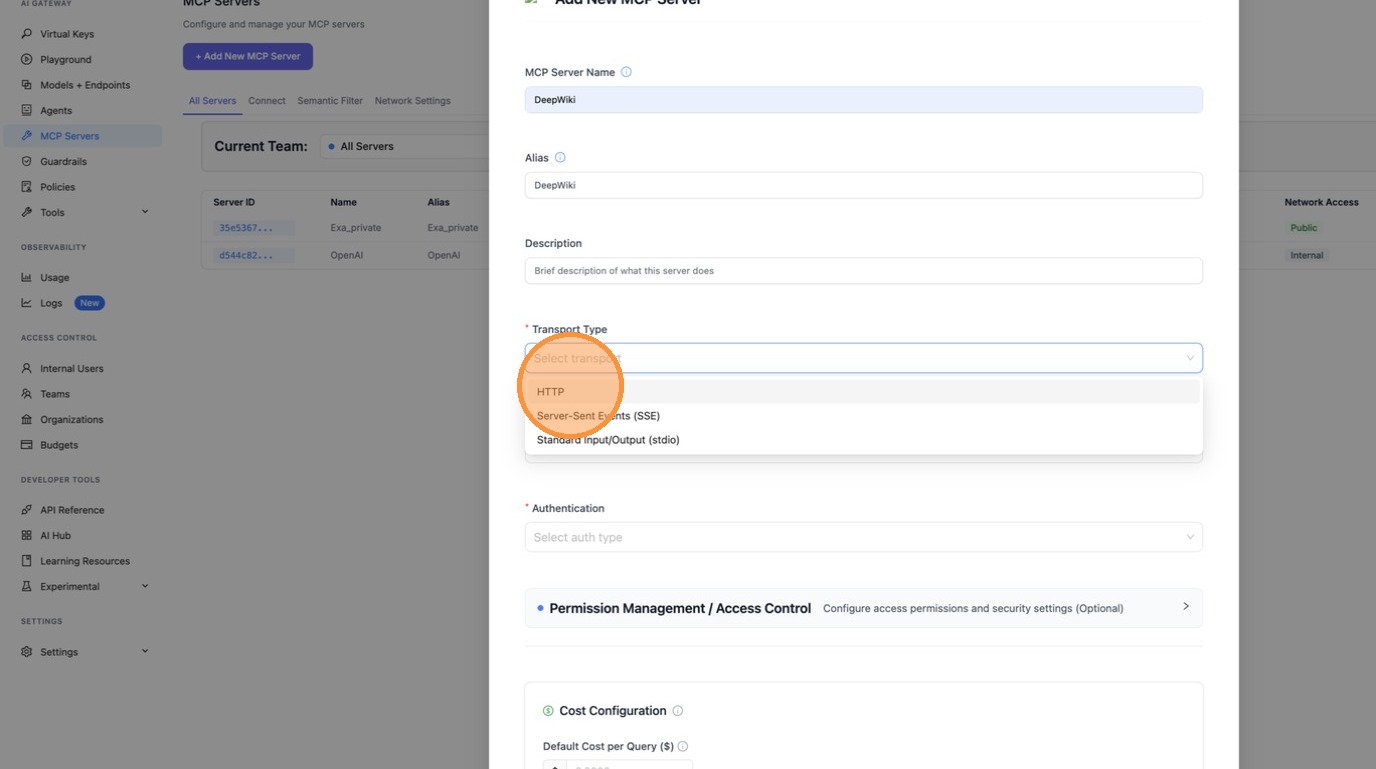
| Select **HTTP** as the transport type. | ||
|
|
||
|  | ||
|
|
||
|  | ||
|
|
||
| Fill in the MCP Server URL. | ||
|
|
||
|  | ||
|
|
||
|  | ||
|
|
||
| #### Step 2: Enable "Available on Public Internet" | ||
|
|
||
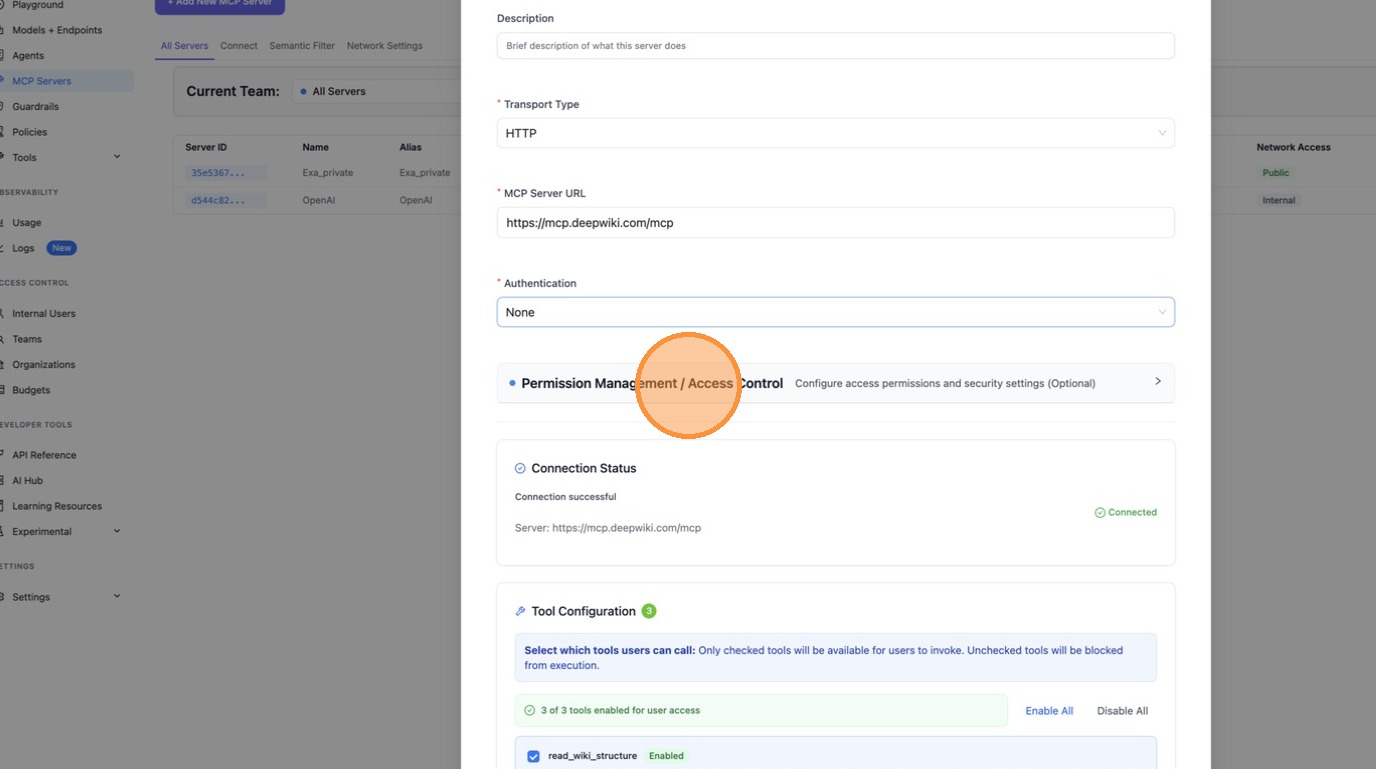
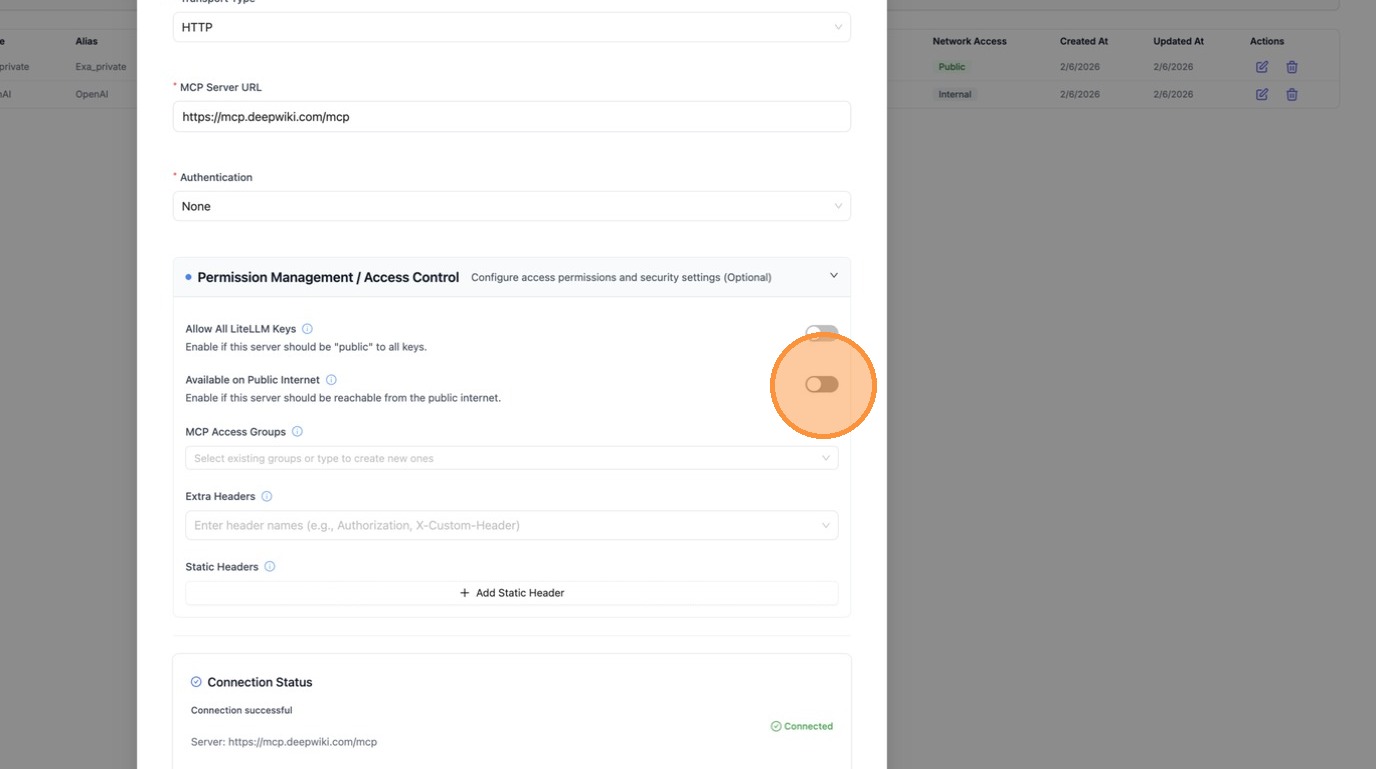
| Expand **Permission Management / Access Control** and toggle **"Available on Public Internet"** on. This ensures external callers (like ChatGPT) can discover this server. | ||
|
|
||
|  | ||
|
|
||
|  | ||
|
|
||
| Click **"Create"** to save the server. | ||
|
|
||
| 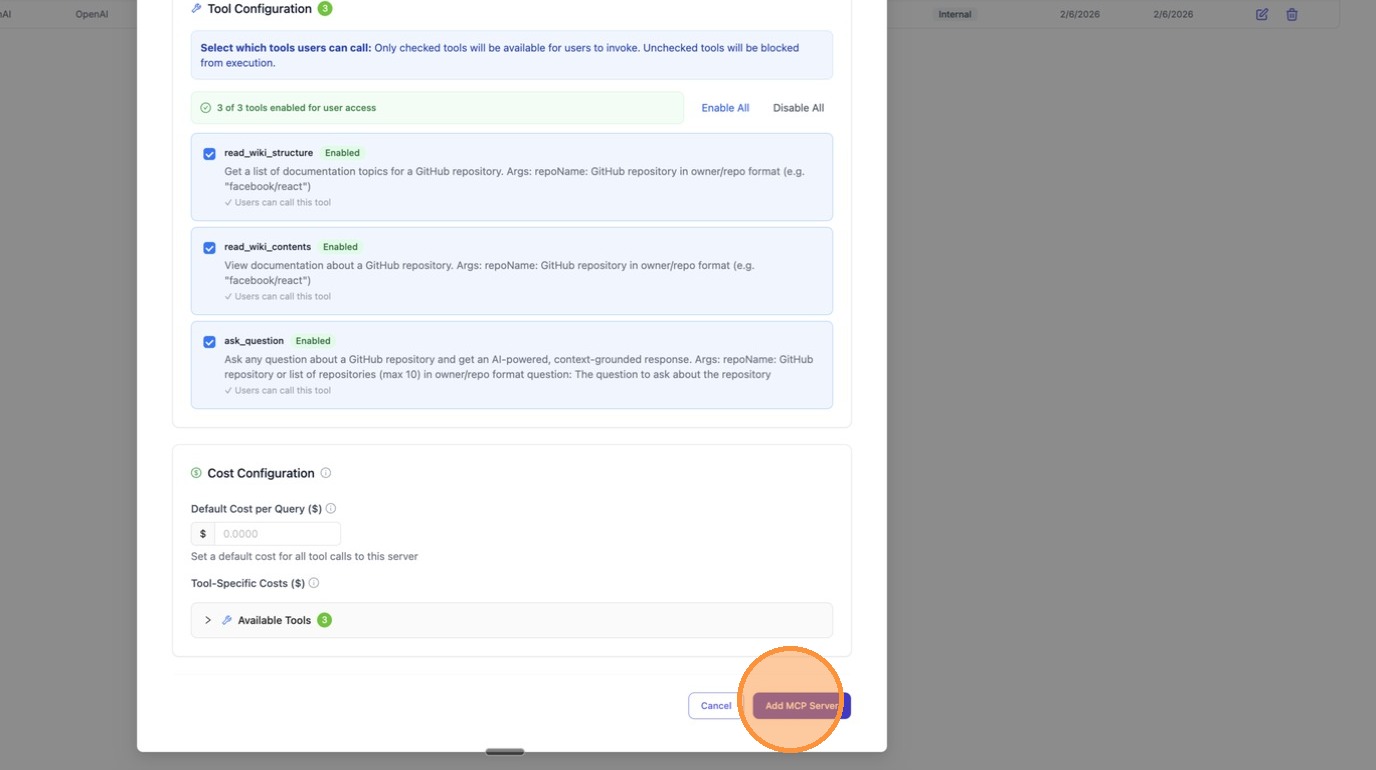 | ||
|
|
||
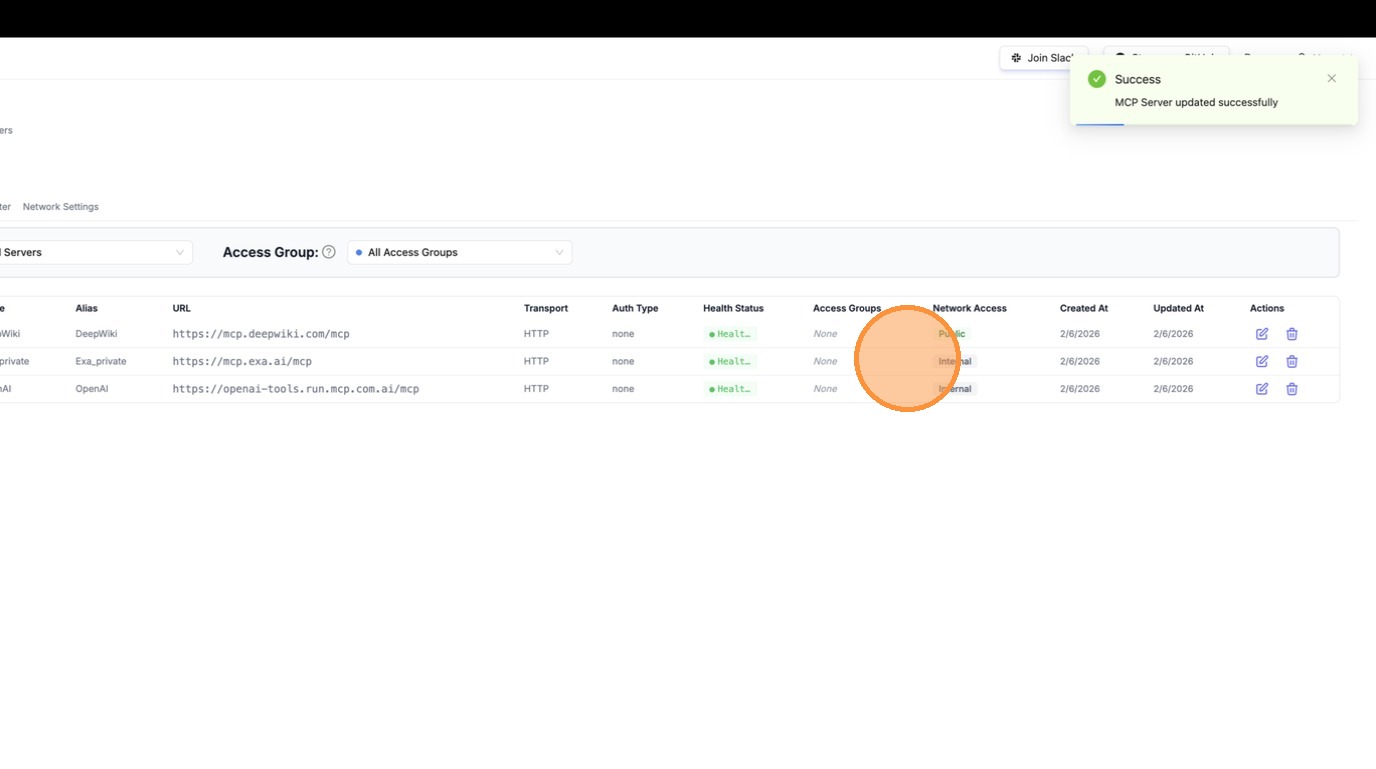
| The server is now created and visible in the table with a **"Public"** badge under Network Access. | ||
|
|
||
|  | ||
|
|
||
| #### Step 3: Connect from ChatGPT | ||
|
|
||
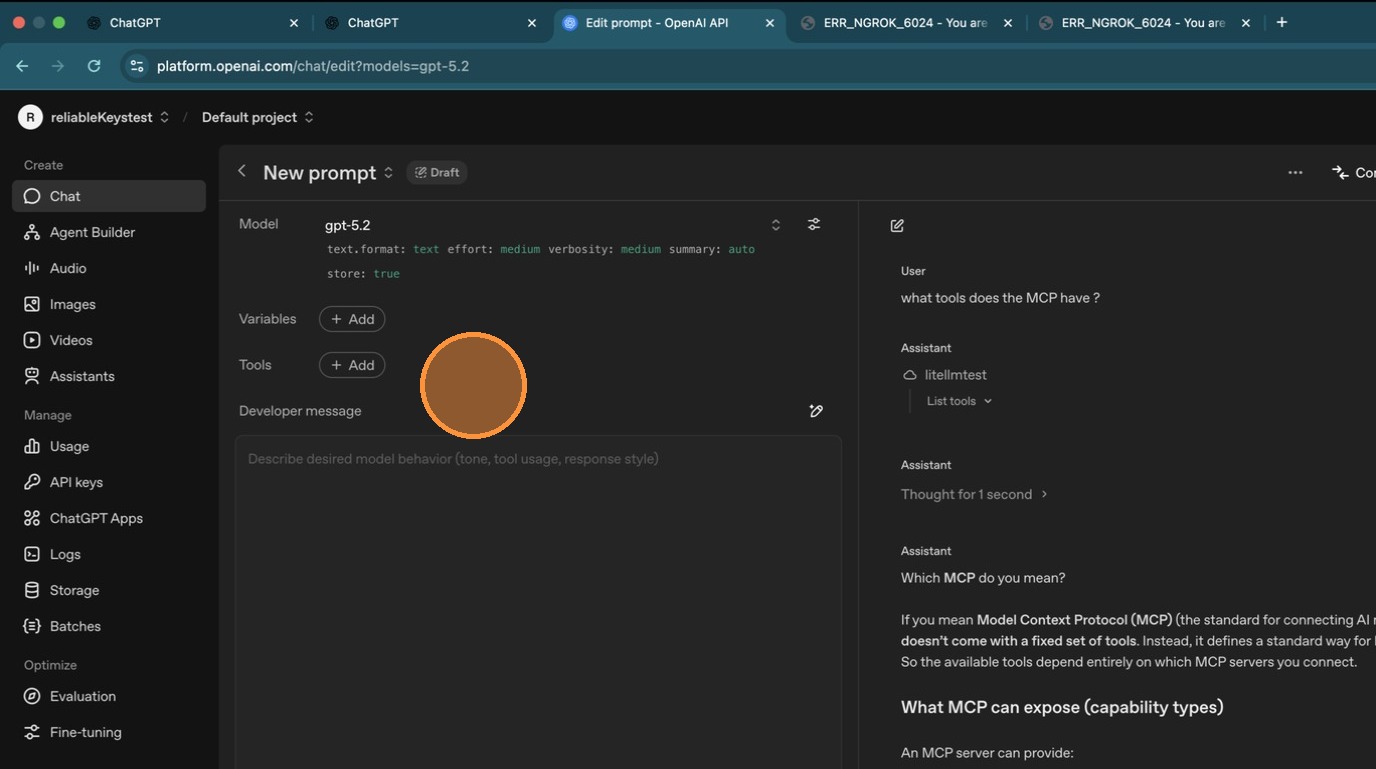
| Open ChatGPT and add a new MCP server. The endpoint to use is: | ||
|
|
||
| ``` | ||
| <your-litellm-url>/mcp | ||
| ``` | ||
|
Comment on lines
+87
to
+91
Contributor
There was a problem hiding this comment. HTML placeholder may break The snippet uses |
||
|
|
||
| Click the MCP server icon in ChatGPT to add a new connection. | ||
|
|
||
|  | ||
|
|
||
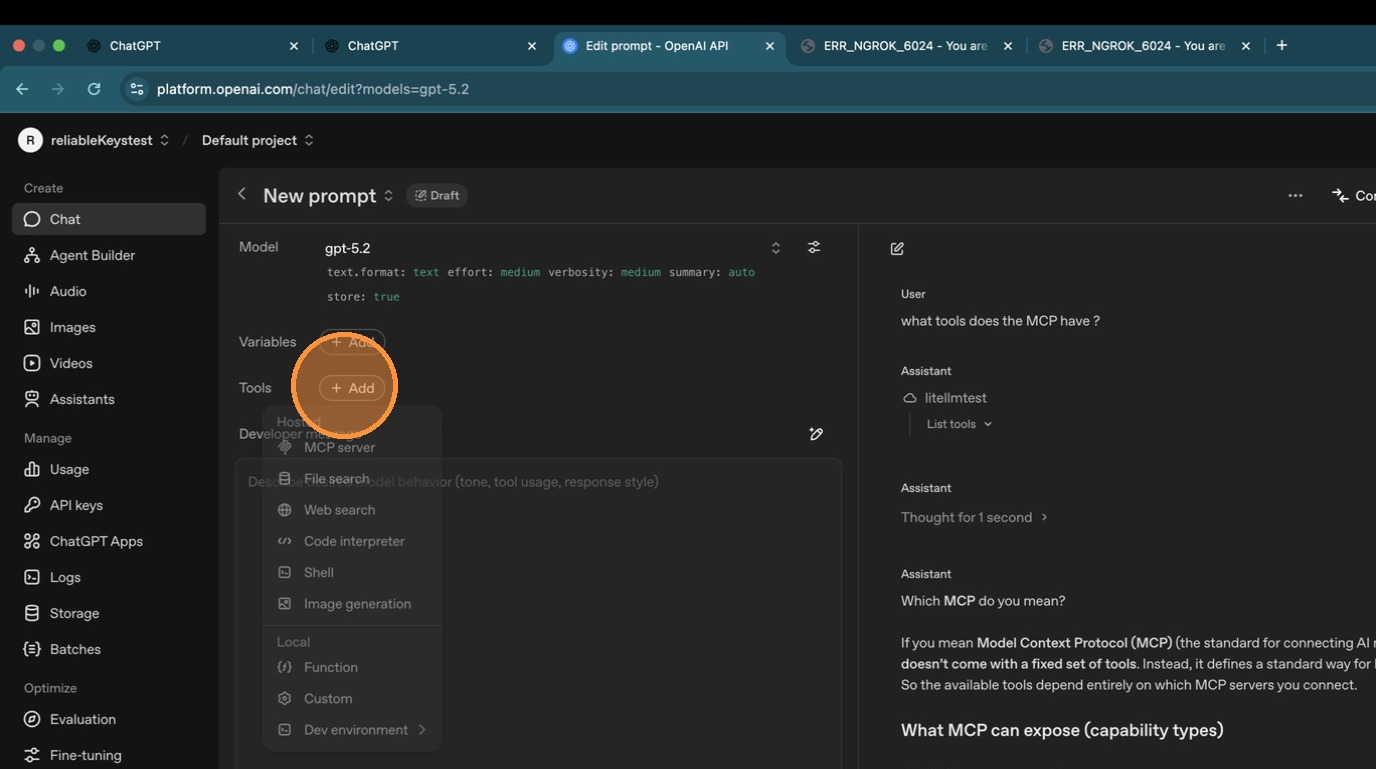
| Select **"Add an MCP server"**. | ||
|
|
||
| 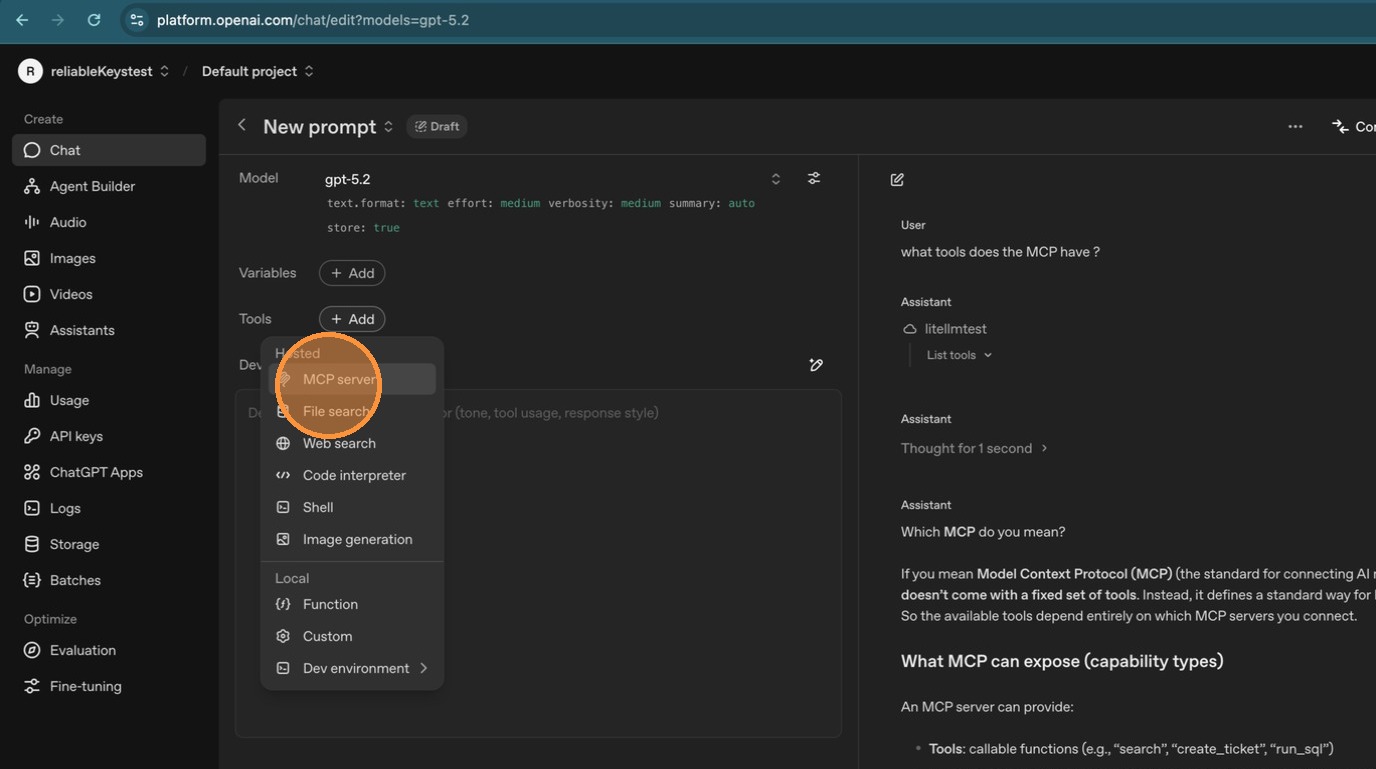 | ||
|
|
||
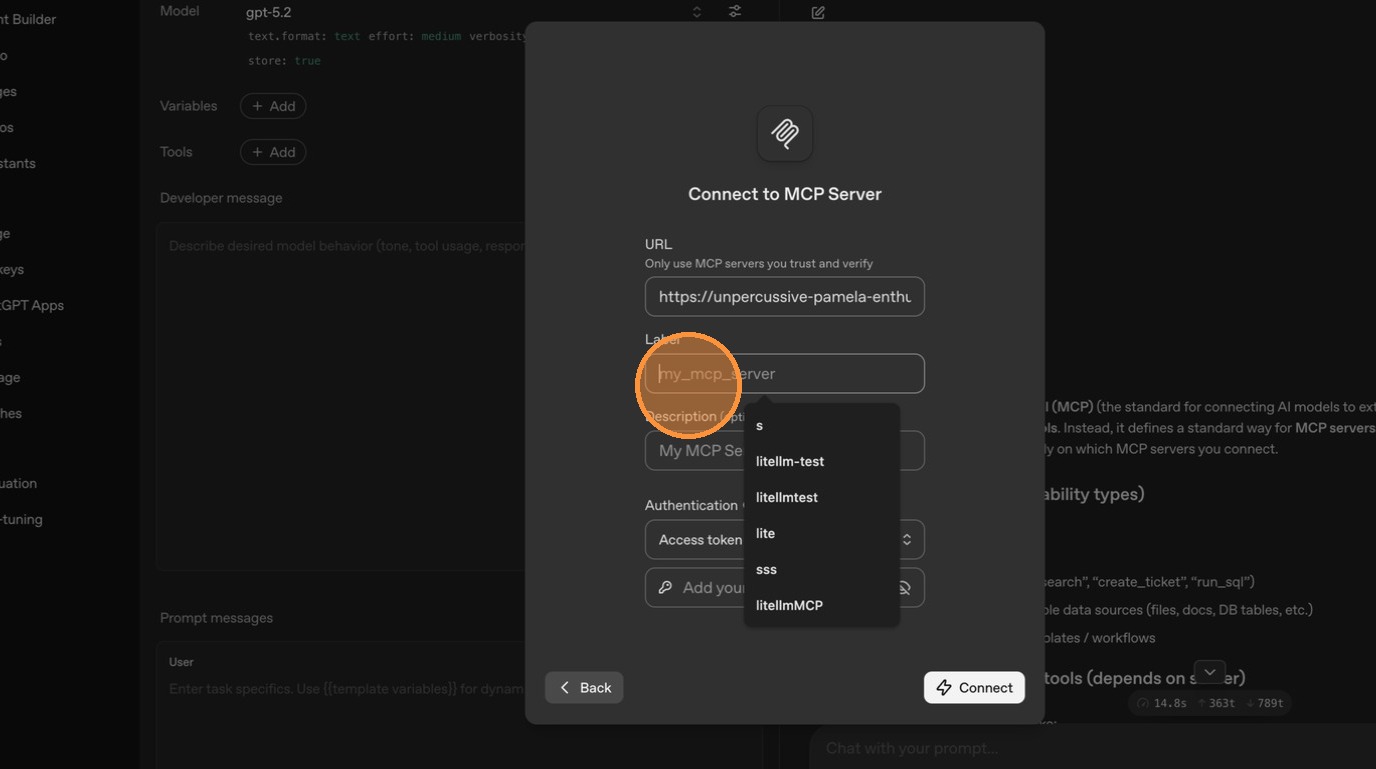
| Enter a label for the server. | ||
|
|
||
| 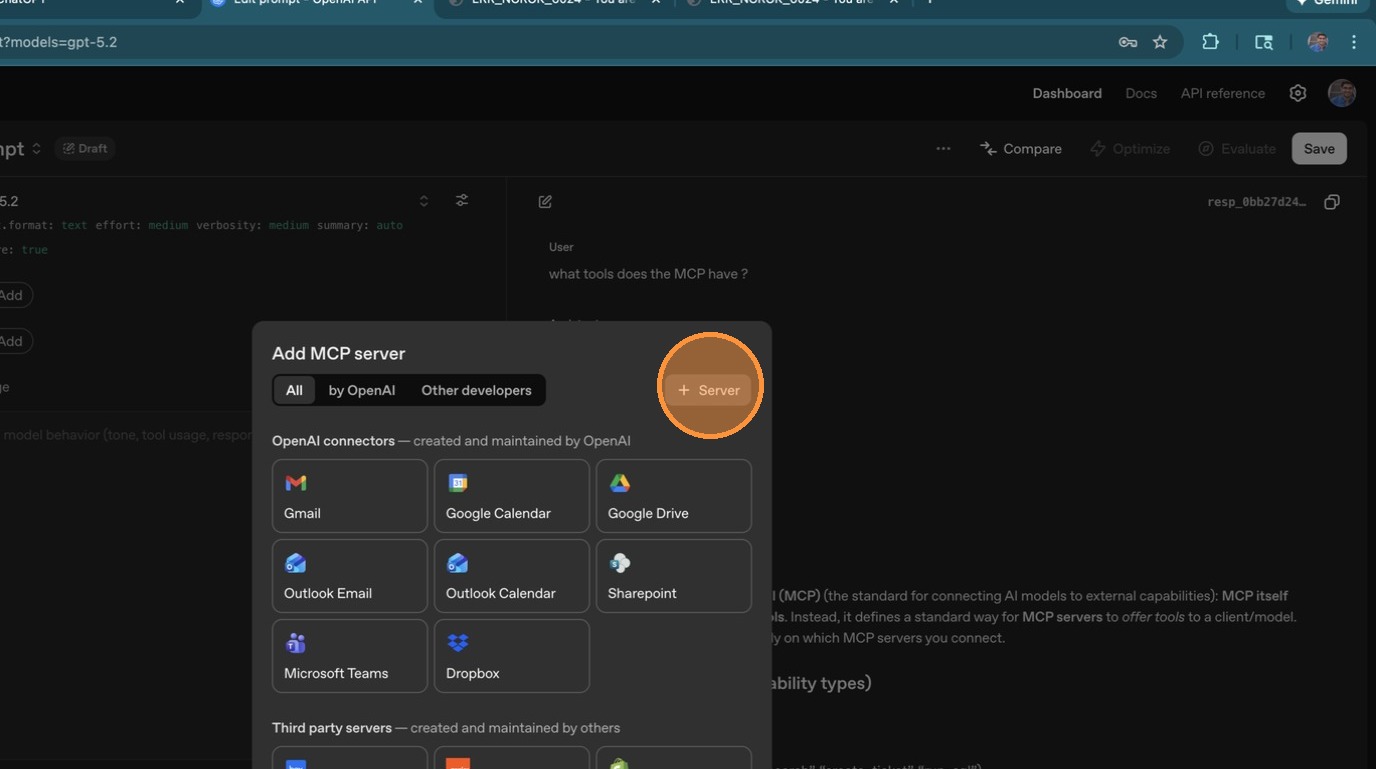 | ||
|
|
||
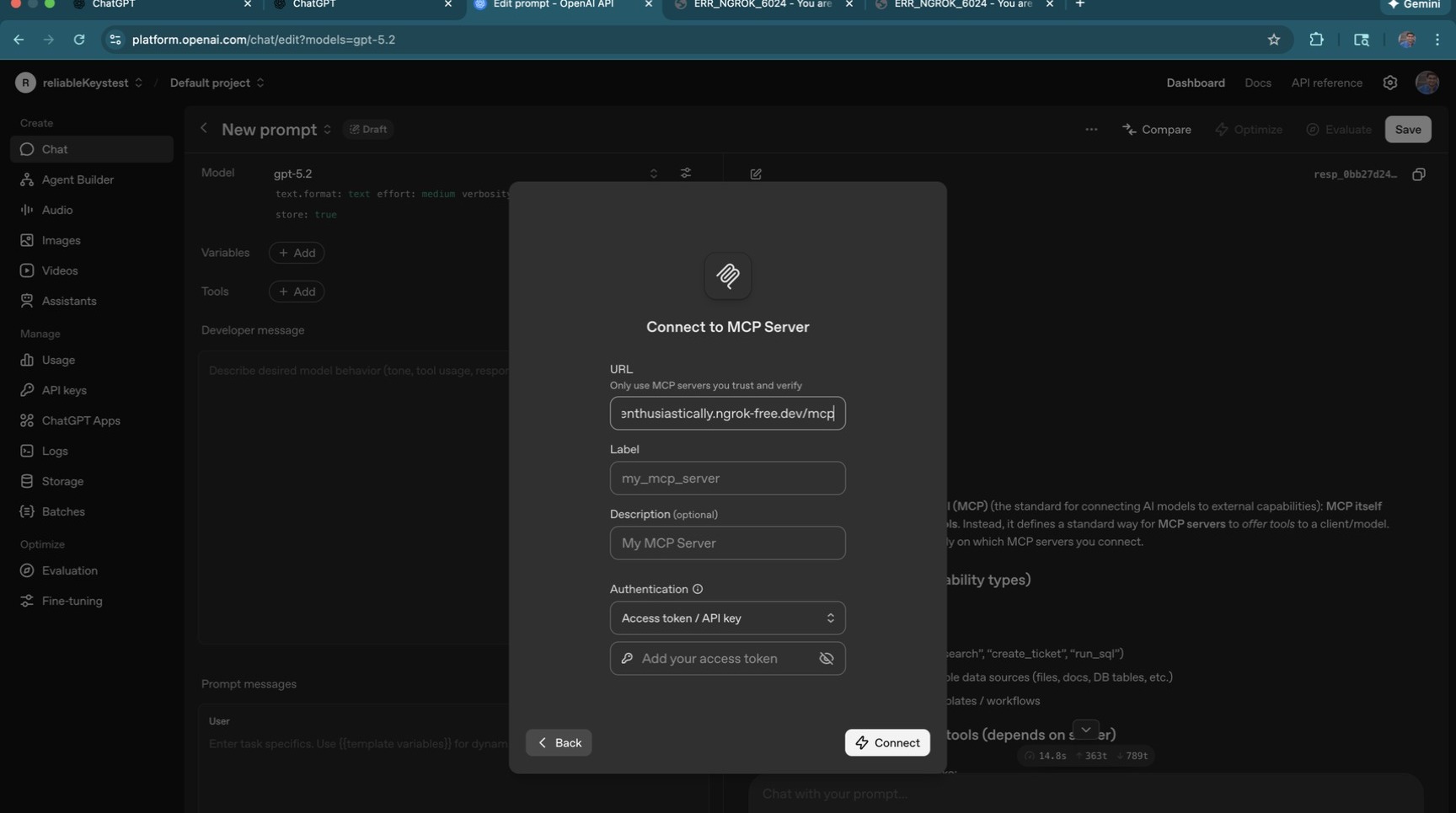
| Paste your LiteLLM MCP URL (`<your-litellm-url>/mcp`). | ||
|
|
||
| 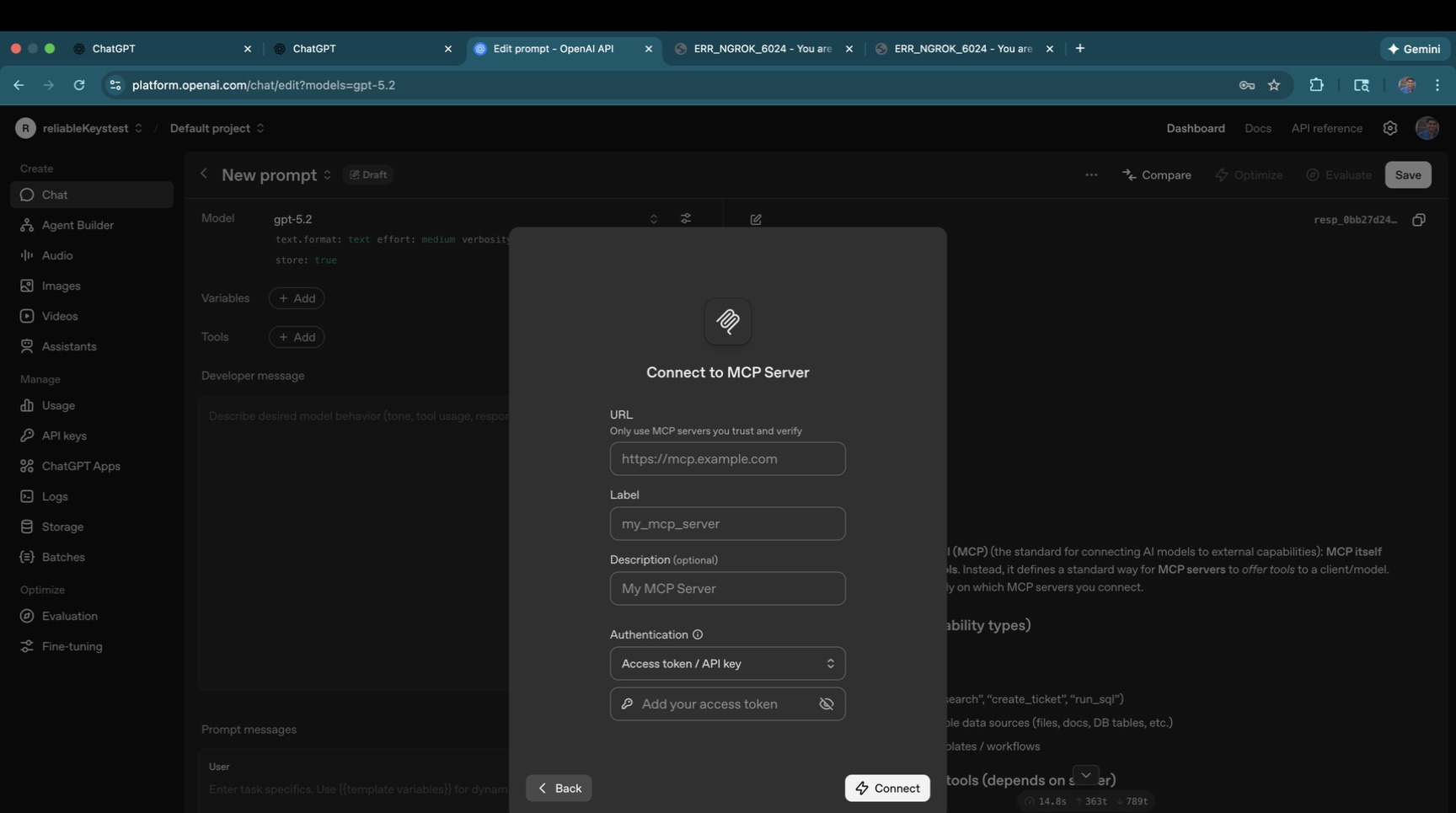 | ||
|
|
||
| 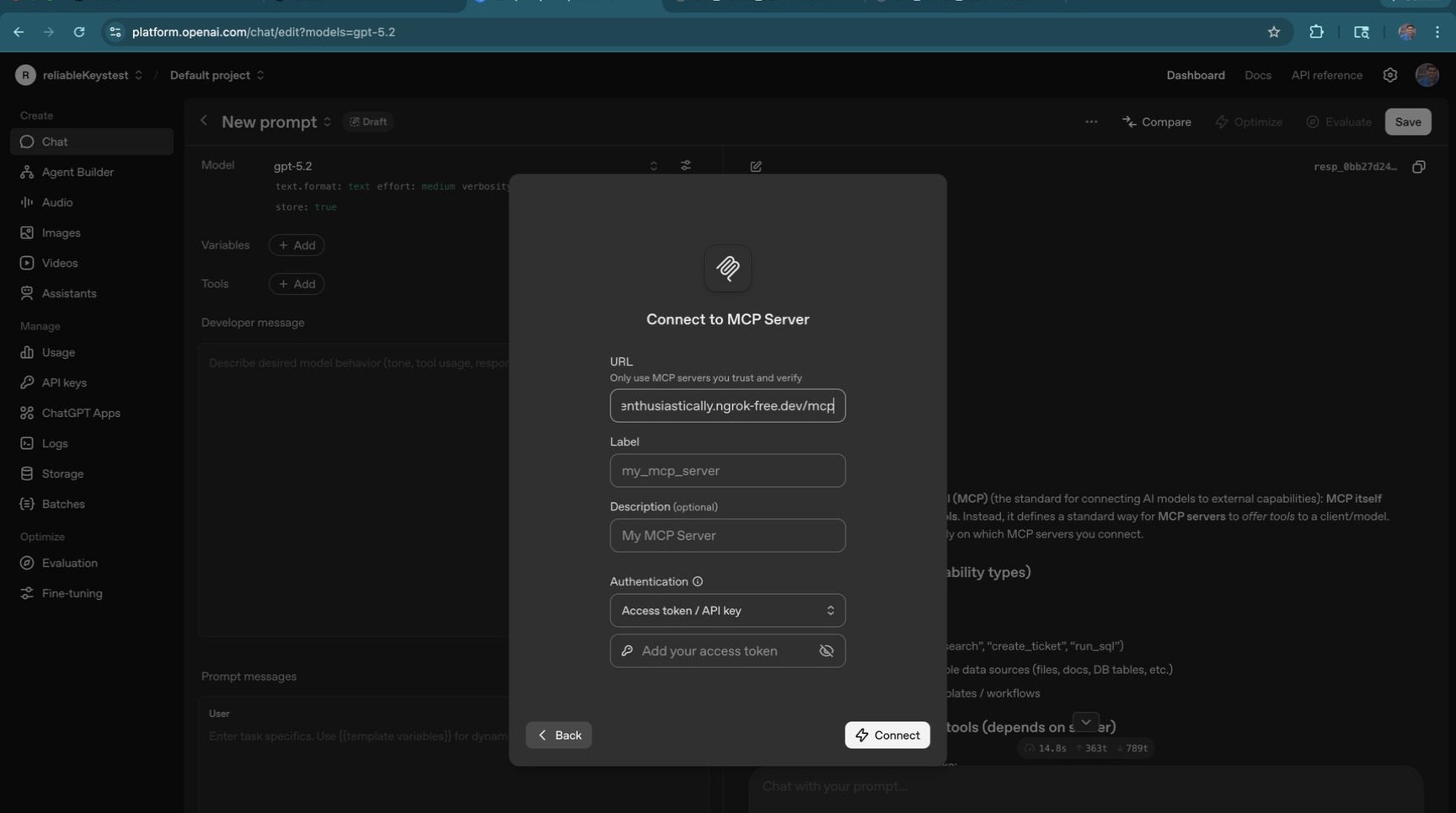 | ||
|
|
||
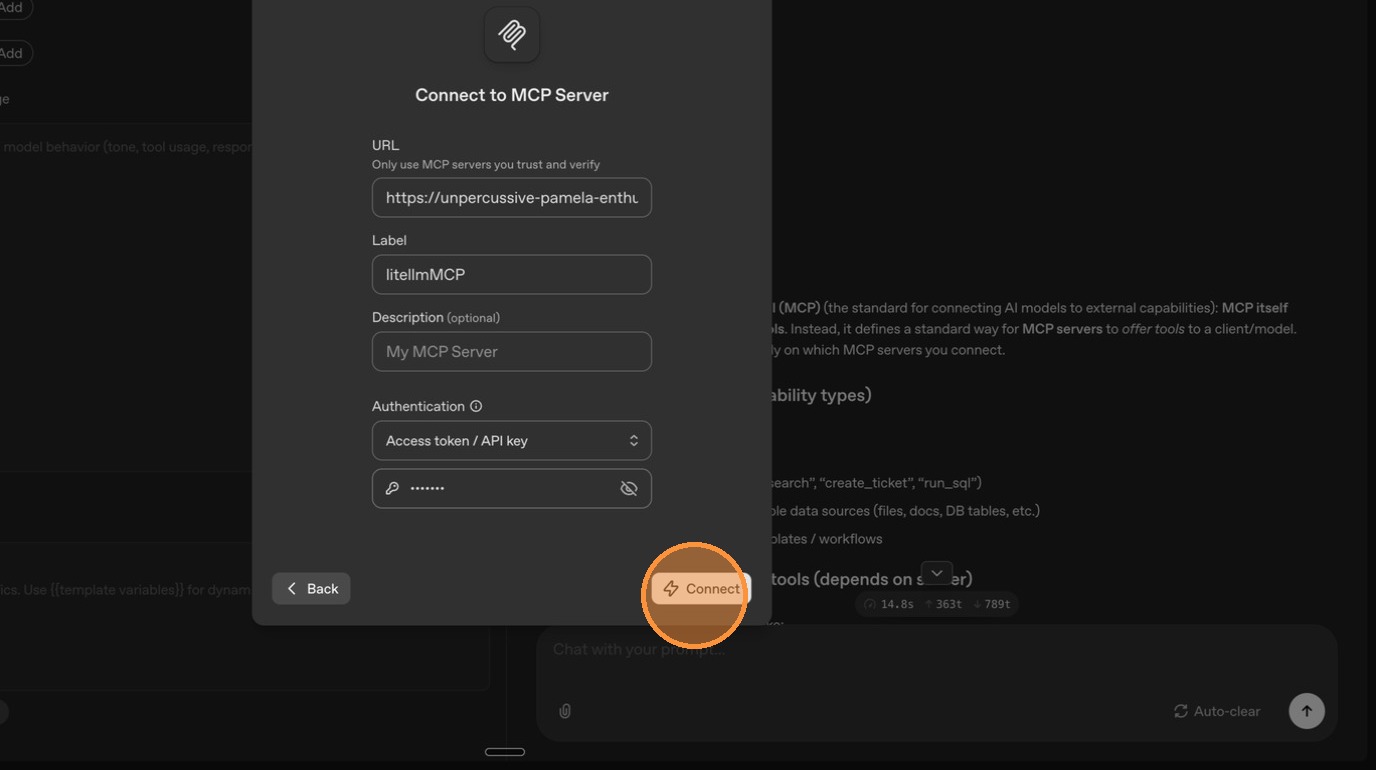
| Enter your LiteLLM API key in the authentication field. | ||
|
|
||
| 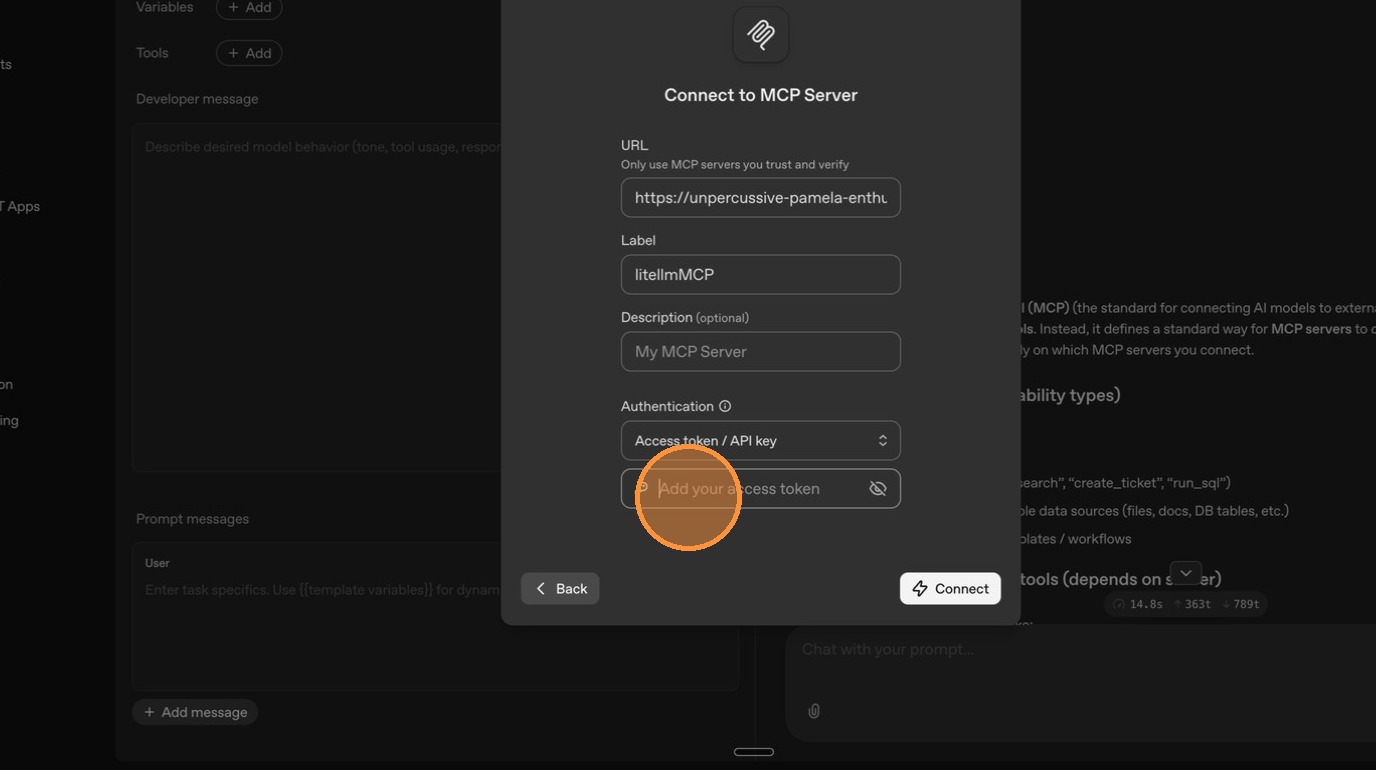 | ||
|
|
||
| Click **"Connect"**. | ||
|
|
||
|  | ||
|
|
||
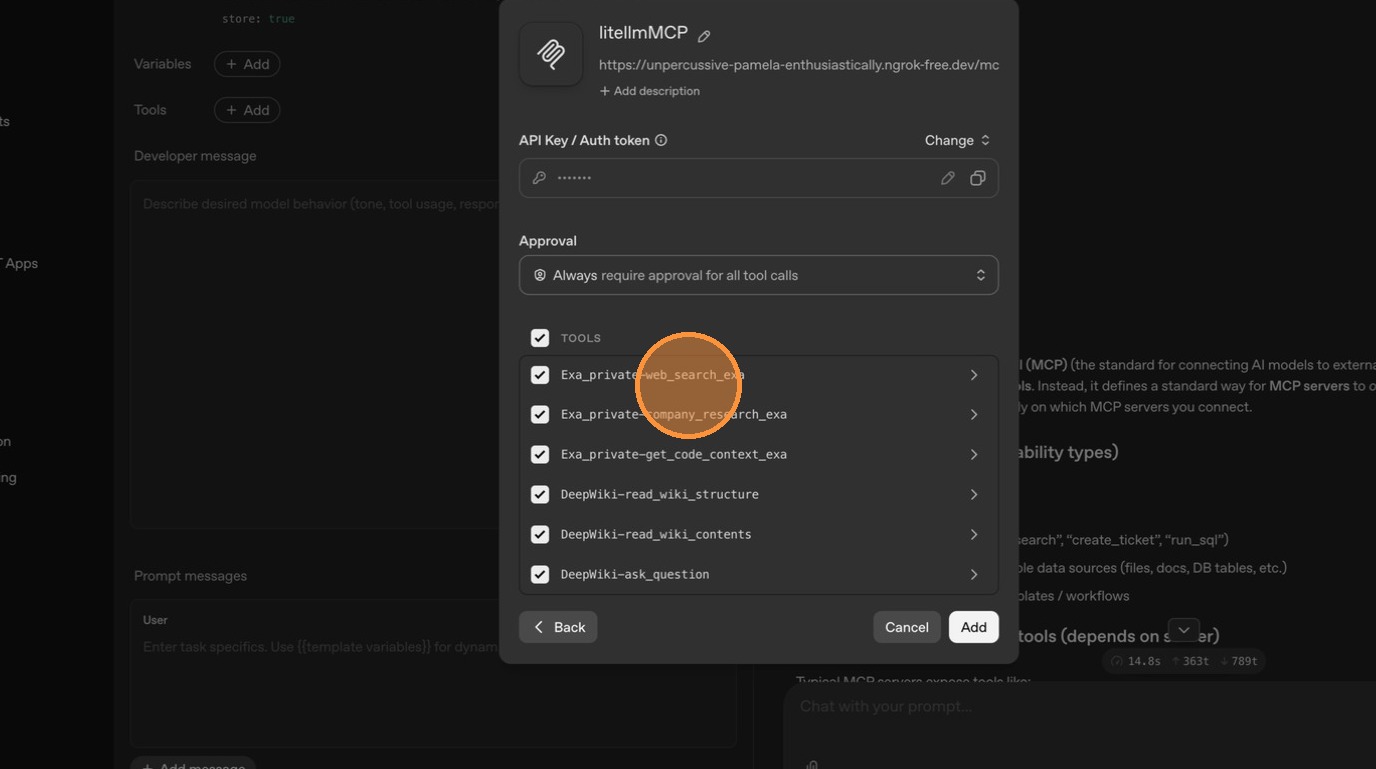
| ChatGPT now shows the available tools from your public MCP servers. Since DeepWiki is marked as public, its tools appear here. | ||
|
|
||
|  | ||
|
|
||
| --- | ||
|
|
||
| ### Flow 2: Make an Existing Server Private (Exa) | ||
|
|
||
| Now let's restrict an existing MCP server so it's no longer visible to external callers like ChatGPT. | ||
|
|
||
| #### Step 1: Edit the Server | ||
|
|
||
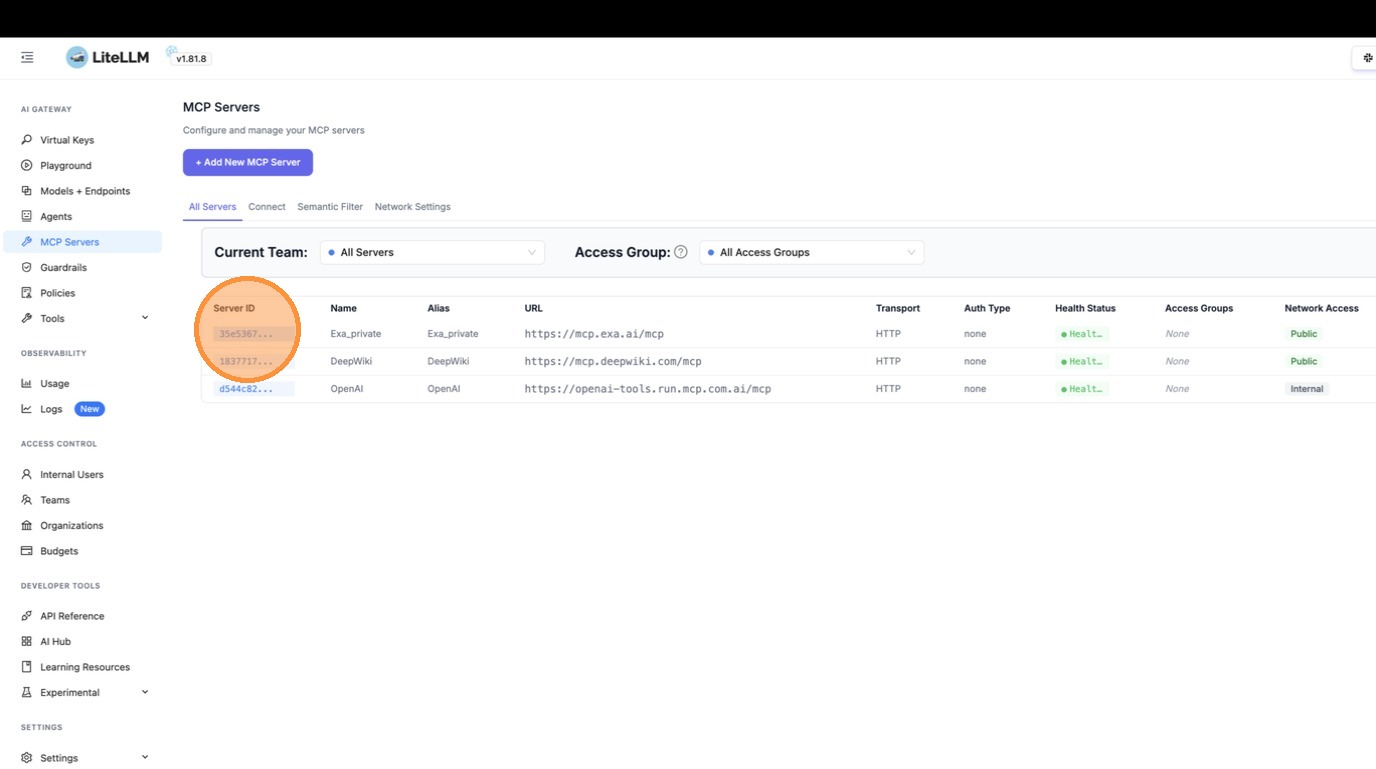
| Navigate to the Exa server and click to view its details. | ||
|
|
||
|  | ||
|
|
||
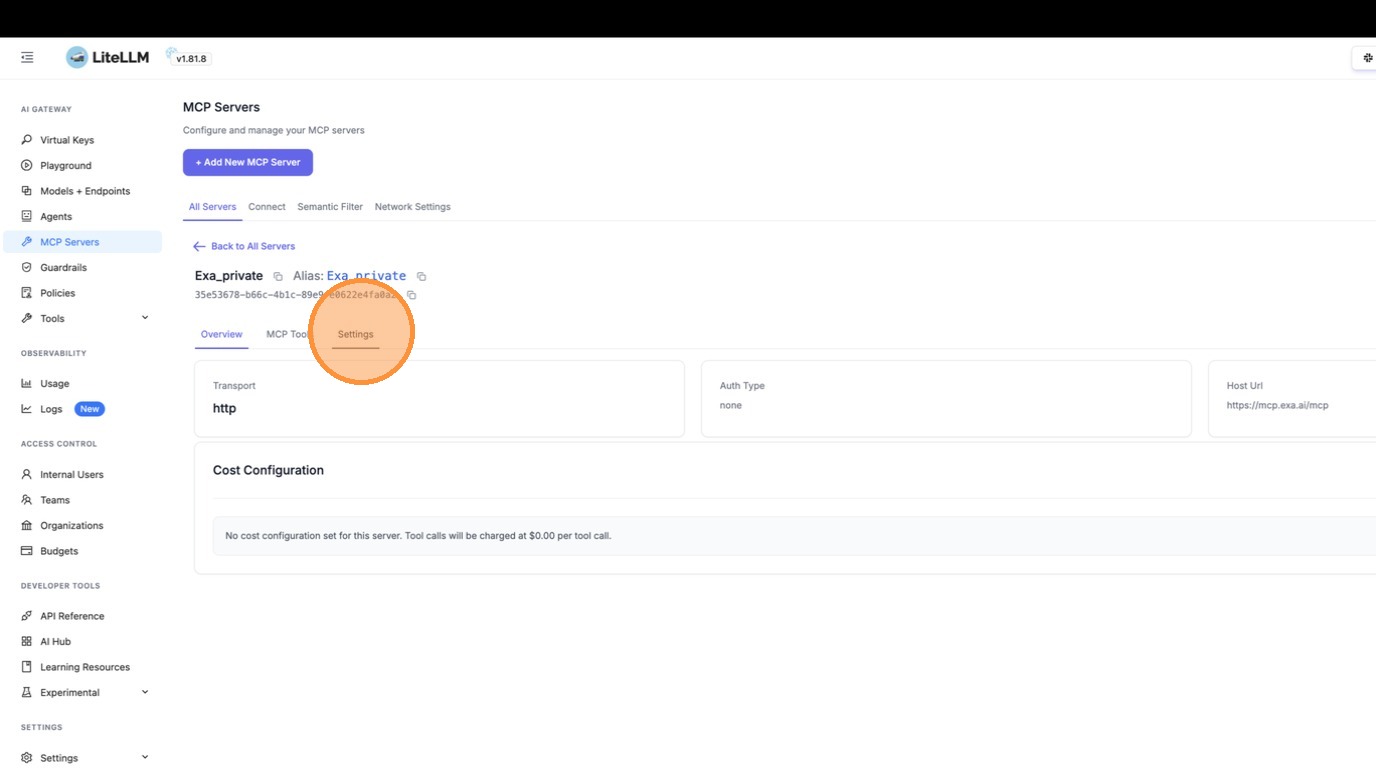
| Click **"Settings"** to edit. | ||
|
|
||
|  | ||
|
|
||
| 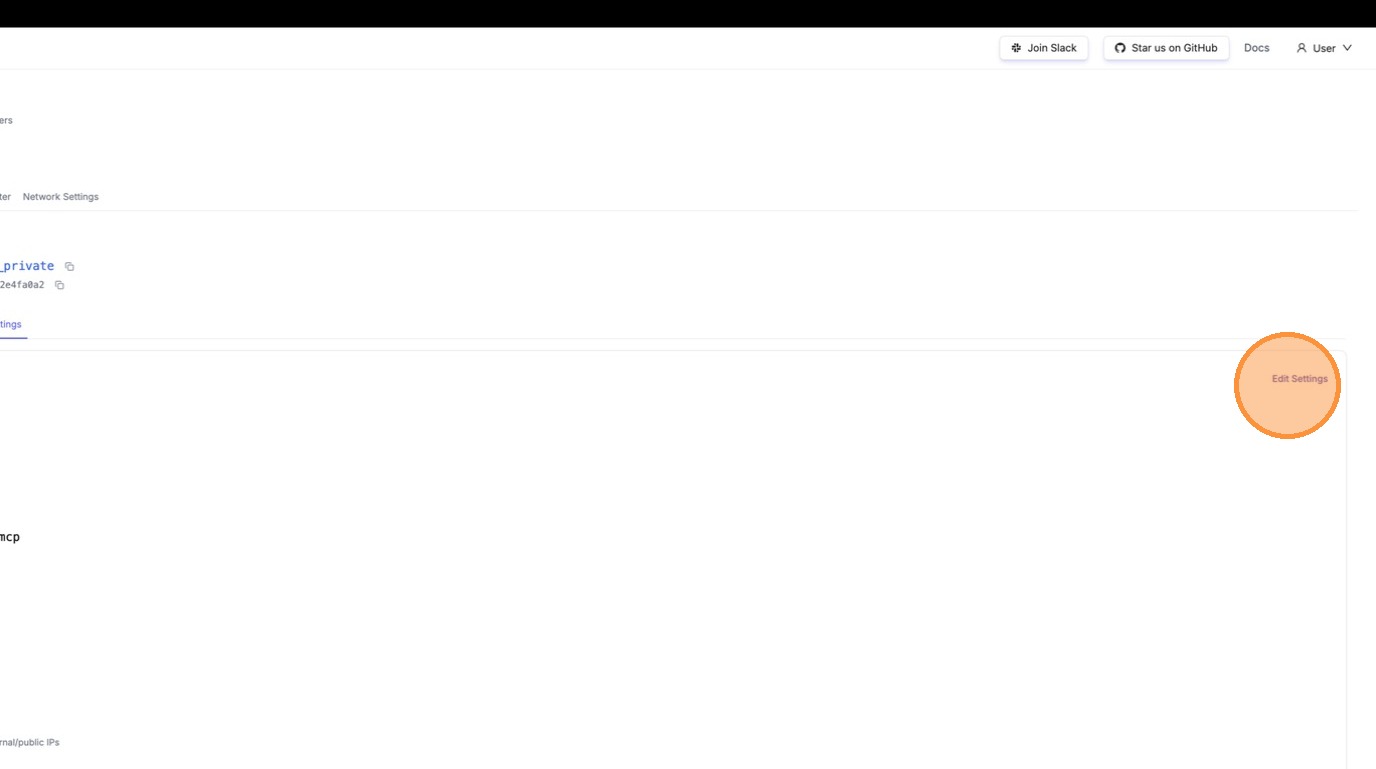 | ||
|
|
||
| #### Step 2: Toggle Off "Available on Public Internet" | ||
|
|
||
| Expand **Permission Management / Access Control**. | ||
|
|
||
| 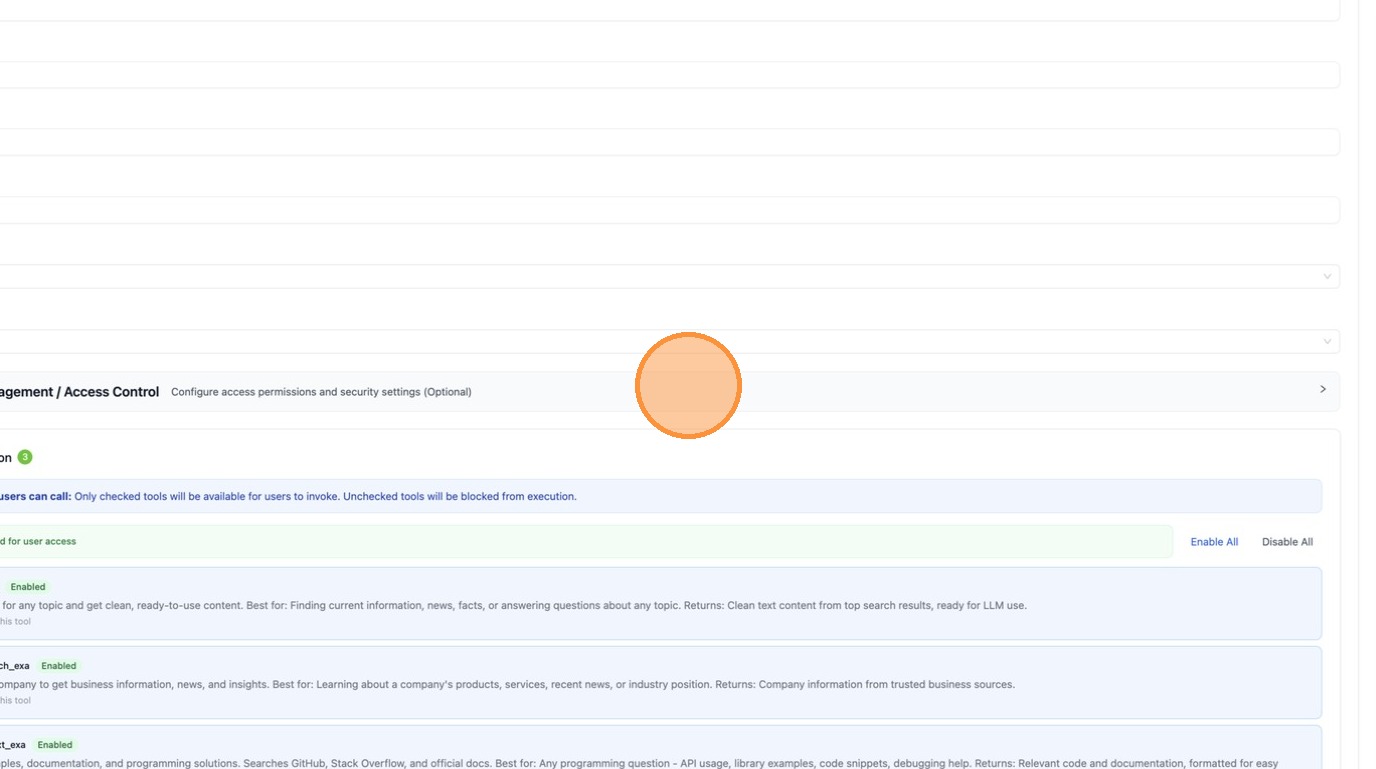 | ||
|
|
||
| Toggle **"Available on Public Internet"** off. | ||
|
|
||
| 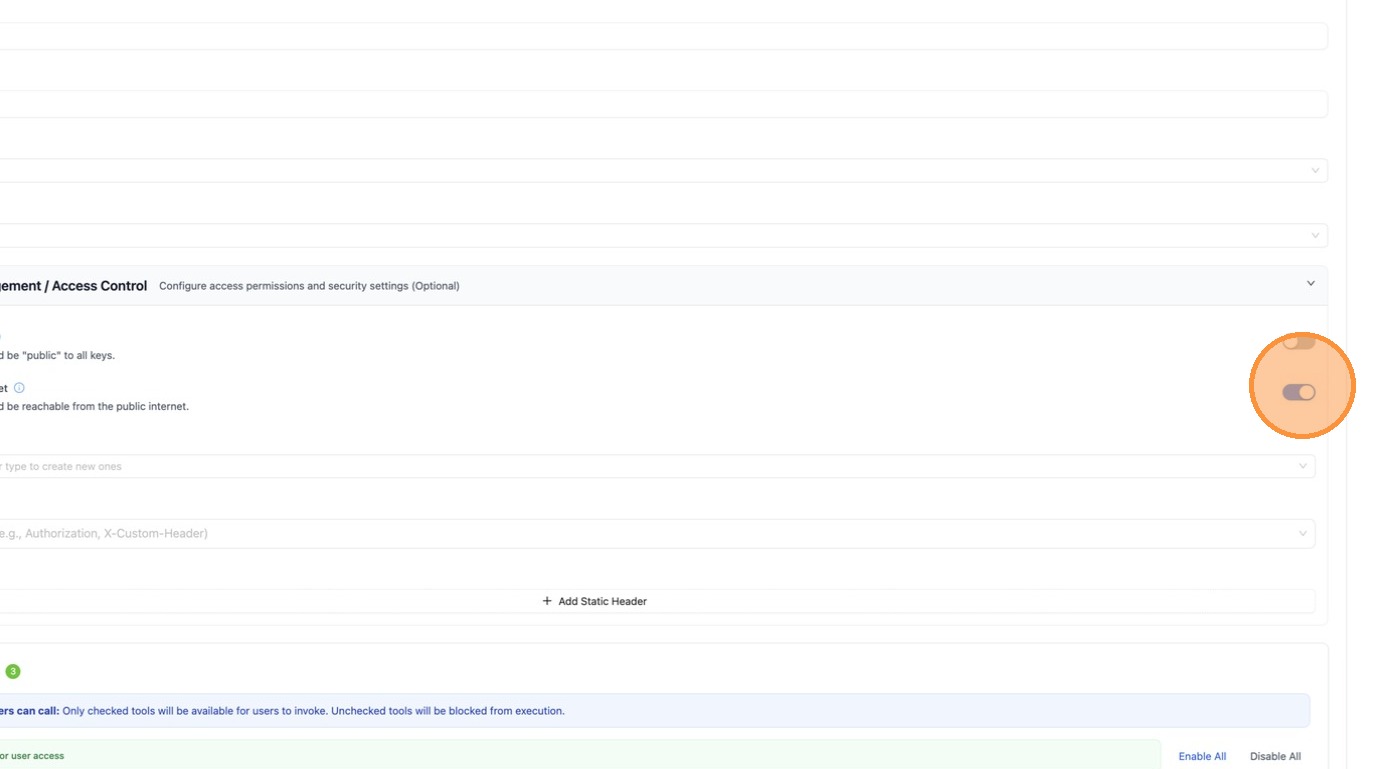 | ||
|
|
||
| Click **"Save Changes"**. | ||
|
|
||
| 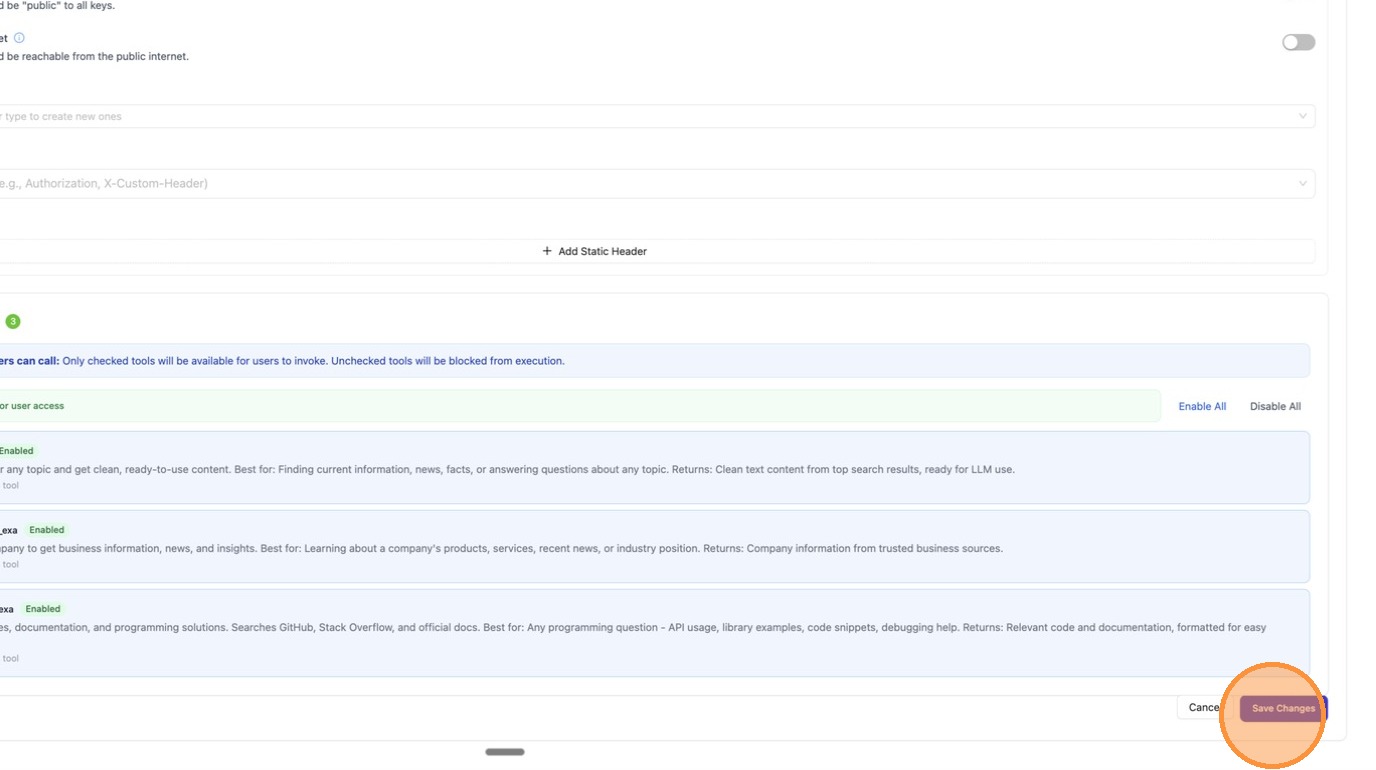 | ||
|
|
||
| #### Step 3: Verify in ChatGPT | ||
|
|
||
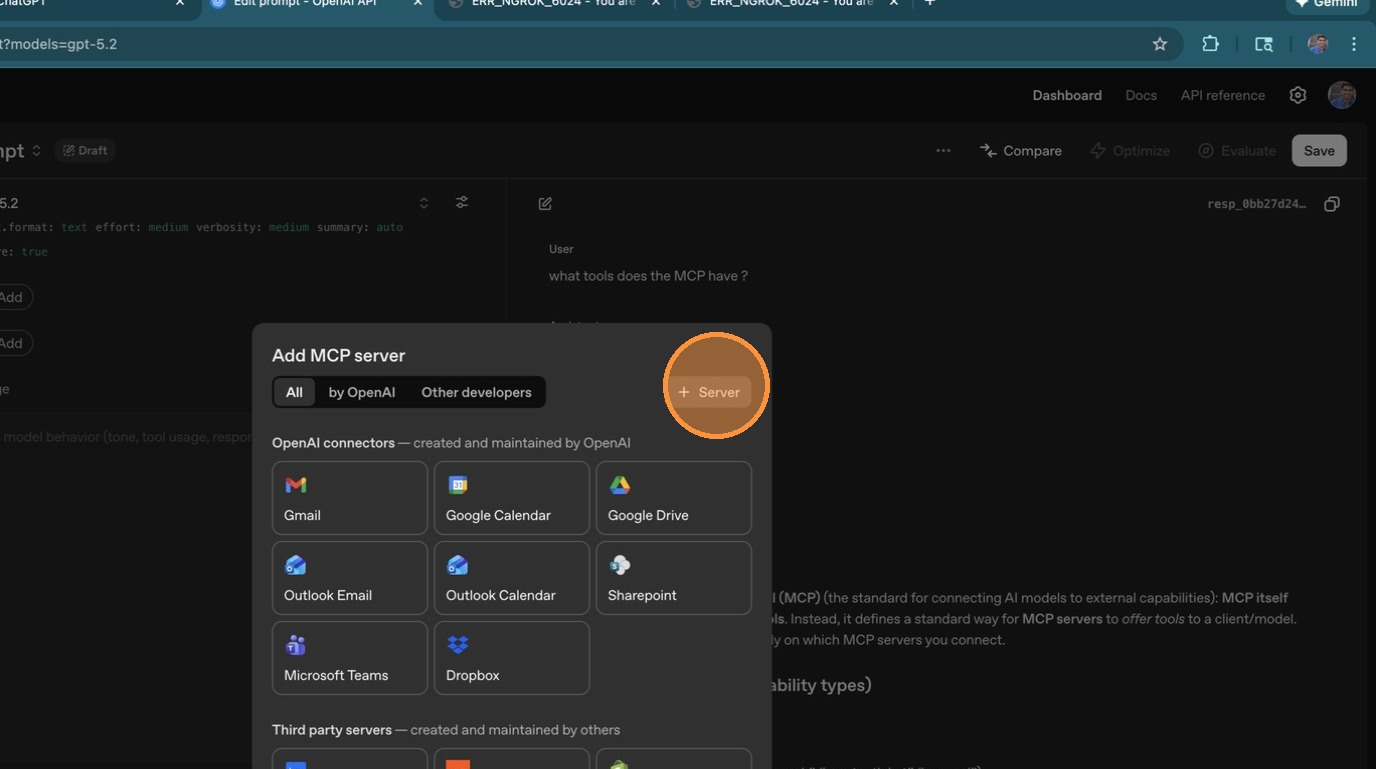
| Go back to ChatGPT and reconnect to the LiteLLM MCP server. | ||
|
|
||
|  | ||
|
|
||
|  | ||
|
|
||
|  | ||
|
|
||
|  | ||
|
|
||
| 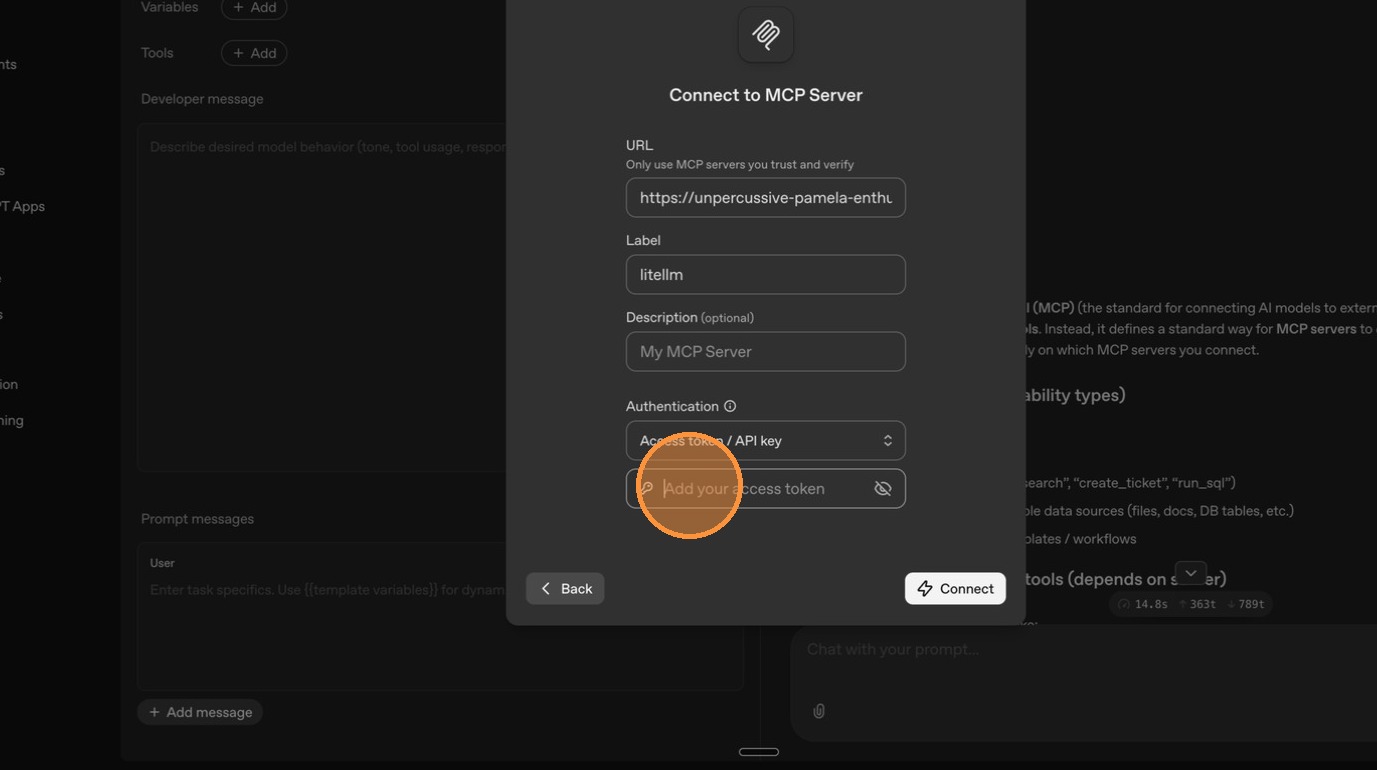 | ||
|
|
||
| 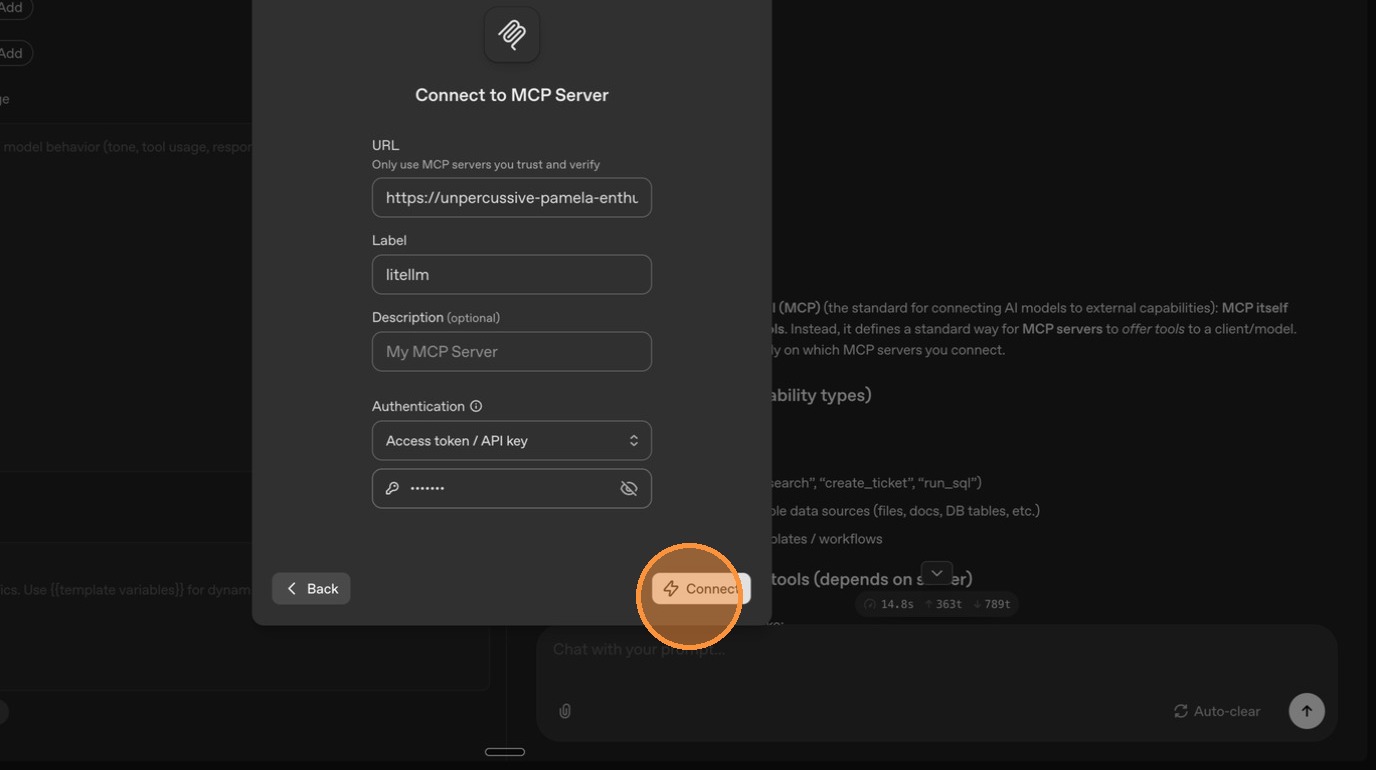 | ||
|
|
||
| Only DeepWiki tools are visible now — Exa has been successfully restricted to internal access only. | ||
|
|
||
| 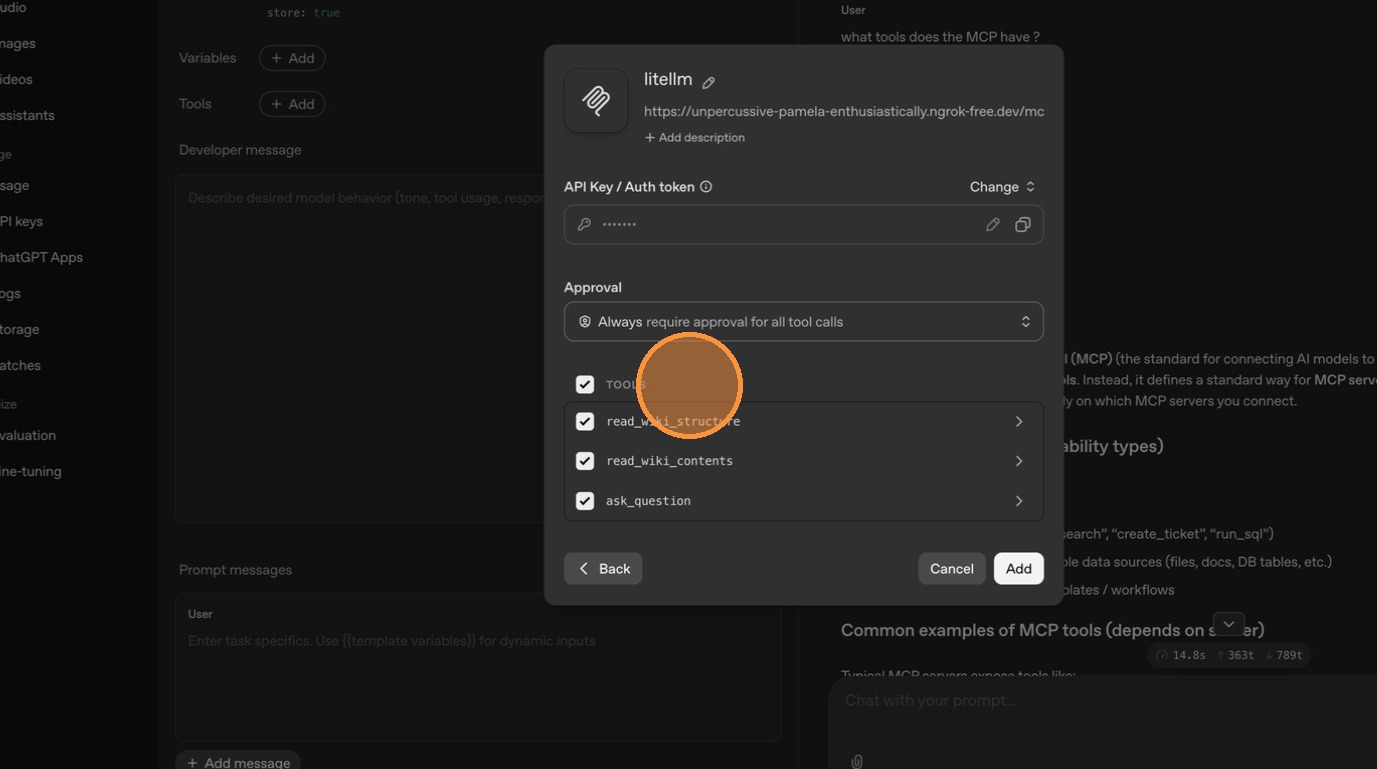 | ||
|
|
||
| ## Configuration Reference | ||
|
|
||
| ### Per-Server Setting | ||
|
|
||
| <Tabs> | ||
| <TabItem value="ui" label="UI"> | ||
|
|
||
| Toggle **"Available on Public Internet"** in the Permission Management section when creating or editing an MCP server. | ||
|
|
||
| </TabItem> | ||
| <TabItem value="config" label="config.yaml"> | ||
|
|
||
| ```yaml title="config.yaml" showLineNumbers | ||
| mcp_servers: | ||
| deepwiki: | ||
| url: https://mcp.deepwiki.com/mcp | ||
| available_on_public_internet: true # visible to external callers | ||
|
|
||
| exa: | ||
| url: https://exa.ai/mcp | ||
| auth_type: api_key | ||
| auth_value: os.environ/EXA_API_KEY | ||
| available_on_public_internet: false # internal only (default) | ||
| ``` | ||
|
|
||
| </TabItem> | ||
| <TabItem value="api" label="API"> | ||
|
|
||
| ```bash title="Create a public MCP server" showLineNumbers | ||
| curl -X POST <your-litellm-url>/v1/mcp/server \ | ||
| -H "Authorization: Bearer sk-..." \ | ||
| -H "Content-Type: application/json" \ | ||
| -d '{ | ||
| "server_name": "DeepWiki", | ||
| "url": "https://mcp.deepwiki.com/mcp", | ||
| "transport": "http", | ||
| "available_on_public_internet": true | ||
| }' | ||
| ``` | ||
|
|
||
| ```bash title="Update an existing server" showLineNumbers | ||
| curl -X PUT <your-litellm-url>/v1/mcp/server \ | ||
| -H "Authorization: Bearer sk-..." \ | ||
| -H "Content-Type: application/json" \ | ||
| -d '{ | ||
| "server_id": "<server-id>", | ||
| "available_on_public_internet": false | ||
| }' | ||
| ``` | ||
|
Comment on lines
+203
to
+223
Contributor
There was a problem hiding this comment. Docs example endpoints inconsistent The API examples use |
||
|
|
||
| </TabItem> | ||
| </Tabs> | ||
|
|
||
| ### Custom Private IP Ranges | ||
|
|
||
| By default, LiteLLM treats RFC 1918 private ranges as internal. You can customize this in the **Network Settings** tab under MCP Servers, or via config: | ||
|
|
||
| ```yaml title="config.yaml" showLineNumbers | ||
| general_settings: | ||
| mcp_internal_ip_ranges: | ||
| - "10.0.0.0/8" | ||
| - "172.16.0.0/12" | ||
| - "192.168.0.0/16" | ||
| - "100.64.0.0/10" # Add your VPN/Tailscale range | ||
| ``` | ||
|
|
||
| When empty, the standard private ranges are used (`10.0.0.0/8`, `172.16.0.0/12`, `192.168.0.0/16`, `127.0.0.0/8`). | ||

There was a problem hiding this comment.
Choose a reason for hiding this comment
The reason will be displayed to describe this comment to others. Learn more.
External screenshots are brittle
This page embeds many external
colony-recorder.s3.amazonaws.comimages. These links are likely to expire or become inaccessible, which will break the docs page rendering/UX. Consider moving key screenshots into the repo underdocs/my-website/static/img/(or switching to fewer, representative images) so the docs remain stable.